How the assistant behaves
Where to set it up
Behavior → Behavior has five tabs: Tone and language, Handover to an operator, Selling style, Contact collection and Limits and protection. The screen is open to the owner and administrators.
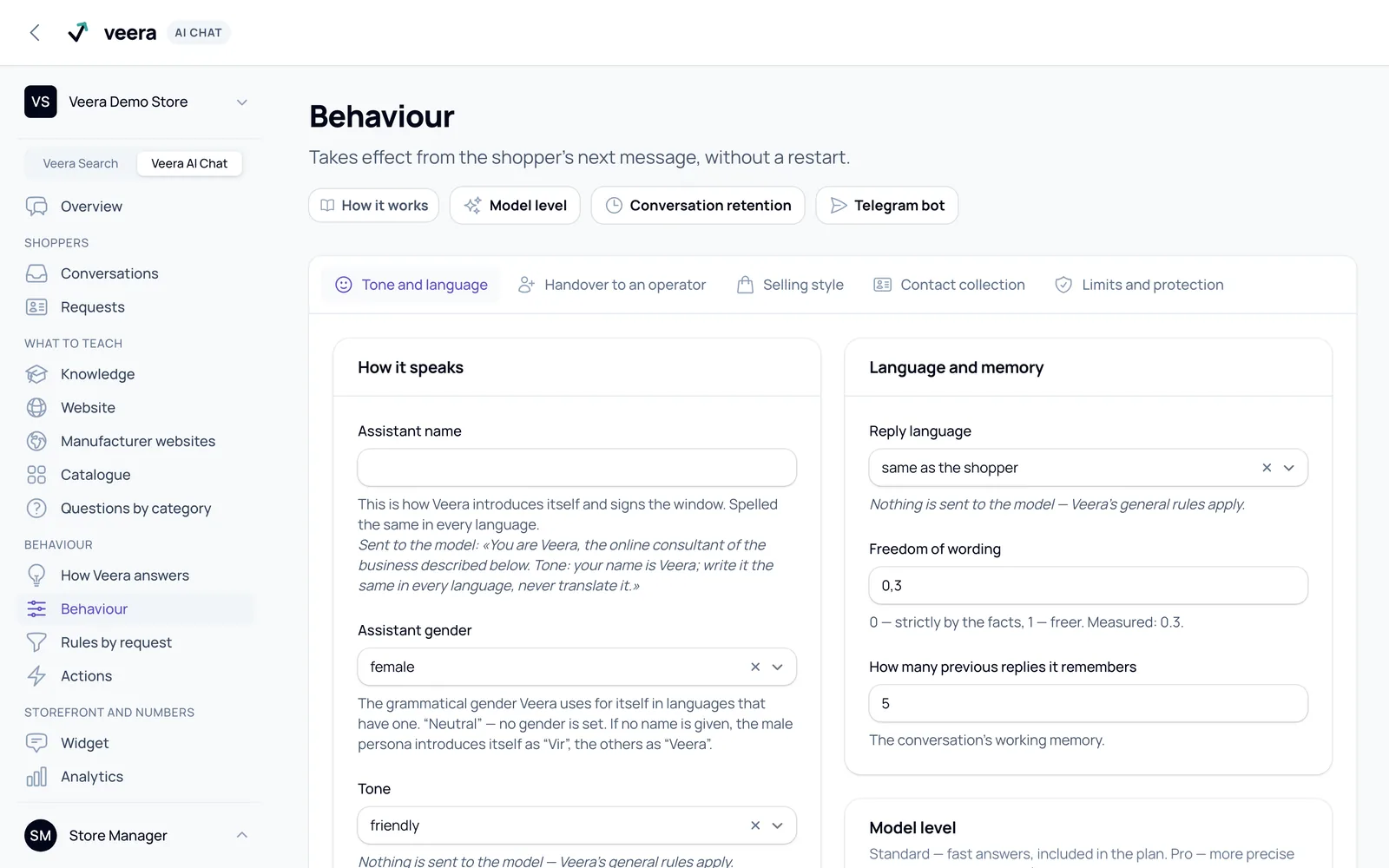
At the top of the screen there are up to three buttons: Conversation retention, Telegram bot and Own key. Which of them you see depends on your plan and role. Any field change applies from the shopper’s next message, and the sandbox is the easiest place to test it.
In the same menu group you’ll find How Veera answers (instructions and store rules) and Rules by request (what to do on specific shopper words and phrases).
Tone and language
The tab has two sections: How it speaks (name, gender, tone, form of address, length, emoji, AI label) and Language and memory (reply language, freedom of wording, memory), plus the Model level block.
- Assistant name: how Veera introduces itself and signs the window. It is the same in every language.
- Assistant gender: female, male or neutral. In languages where words change with gender, this sets how Veera refers to itself. If no name is set, the male persona introduces itself as “Vir” and the others as “Veera”.
- Tone: friendly, polite or businesslike. Form of address: like the shopper, formal or informal, for languages that make the distinction. With formal address you also get the Switch to informal address if the customer asks toggle.
- Answer length: brief, normal or detailed.
- Emoji: at most one, and only where it fits.
- “Answered by AI” label: a caption under the first message. In the EU, telling people they are talking to an AI is a legal requirement; we recommend keeping the label on in every market.
- Reply language: by default, the shopper’s language. You can pin one of twelve languages.
- Freedom of wording: from 0 (strictly factual) to 1. A good working value is 0.3.
- How many previous replies it remembers: the working memory within one conversation.
The Model level block is on this tab too: the assistant answers at the Standard level included in your plan. The dashboard doesn’t show model names: the Veera team picks the model.
Selling style
The How to sell section:
- How actively to sell: educational, moderate or active.
- Suggest related items: one accessory or add-on, when it fits.
- Compare products on request.
The What it already does section lists what needs no setting. For example, if nothing fits under the price cap the shopper named, it shows the cheapest similar item instead of saying “nothing found”.
The Scenario families section has one field of the same name: your own families, one per line, up to 40, as a code, “:”, the name and what sets the family apart. Veera assigns each question to a family by its meaning; the answer doesn’t change. Conversations and requests by family are shown in the Scenario families section of Analytics.
Buttons and commands in the chat window
Four toggles decide what the chat window can do on the storefront:
- “Add to cart” button on the card: puts the product in the cart without leaving the conversation.
- “Add to wishlist” button on the card: saves the product to the shopper’s wishlist.
- “Compare” button on the card: adds the product to the store’s comparison list.
- Store commands in the window menu: “My orders”, “Find an order by product”, “Track an order” and “My cart”.
The store’s connector carries out all four. The wishlist and compare buttons and the menu commands appear only on a storefront with Veera Connector, and wishlist and compare only where the store itself has those features. The Actions screen shows whether they work in your store.
Handover to an operator
The Hand over to an operator toggle comes first. With it off, Veera never promises the shopper a person. With it on, the tab answers four questions in its sections When, Who gets the talk, How and whom to call and Files and rating; the fifth section, Telegram as the shop’s channel, is described below.
When to hand over:
- The shopper asked for a person: “operator”, “manager”, “a real person” in the store’s languages;
- The shopper is upset or rude;
- Veera found no answer in a row, times: 0 means never hand over for this reason;
- A question not about the shop;
- Topics that always go to a person, one per line, up to twenty: “refund”, “complaint”. A topic matches when all of its words appear in the message.
A separate toggle, Ask for confirmation before handing over, makes Veera first ask “shall I call a colleague?” when a rule triggers. A direct request for a person is handed over right away.
Who gets the talk. The Where a talk goes field has four options:
| Option | What happens |
|---|---|
| “to everyone — whoever takes it first” | The conversation sits in Inbox for all operators who are online |
| “to the least busy operator — as an invitation” | The least busy operator gets an invitation, and the conversation is marked “for you” |
| “in turn — as an invitation” | Invitations go to operators in turn |
| “to the least busy operator — assigned straight away” | The conversation goes straight into Mine of the least busy operator, with no invitation |
You can create Departments (one per line: “Sales”, “Support”). The shopper is then asked whom they want to talk to, and team members are assigned to departments on the Team screen. The How many talks one operator holds limit stops the system from assigning more than that: a conversation over the limit can only be taken over.
Timing. Promised operator reply time, minutes highlights overdue conversations on the Conversations screen (0 means no promise). If the invited one did not answer, seconds: after that the conversation is shown to every operator. If nobody takes the conversation, minutes: after that Veera apologizes in the chat window and asks for a contact. Return the conversation to Veera if the operator is silent for, minutes keeps the shopper from waiting forever.
How and whom to call. Three texts: What to say during working hours (you can name a time: “a colleague will join within 5 minutes”), What to say outside working hours and What to say if nobody came. Operator working hours are set as one line with a time zone and days: Europe/London; mon-fri 09:00-18:00; sat 10:00-14:00. If no hours are set, an operator counts as online while the Conversations screen is open.
Files and photo search
The Files and rating section:
- Accept files from the shopper turns on the paperclip in the chat window: images and documents up to 10 MB. With the toggle off there is no paperclip.
- Photo search: the shopper sends a product photo or a screenshot, optionally with a caption (“the same, but blue”), and Veera shows similar products from your catalog. The photo is processed on Veera’s servers and is not sent to the AI model. It works once your catalog’s pictures are prepared for search, so we turn it on at your request: write to support@veera.space. Without photo search, Veera doesn’t look at images and passes them on to a person.
- What Veera says about a file it receives: the reply to a file Veera doesn’t read. With photo search on, it is used only for documents and for a photo that could not be looked at.
- Ask how the operator helped asks the shopper for a rating after a conversation with a person, once per conversation. The rating shows in the conversation and in the Operators section of analytics. Wording of the rating request replaces the default “How did we do?”.
Telegram
The Telegram bot button at the top of the screen opens Telegram bot for the duty team: create a bot with @BotFather, add it to your on-duty team’s chat and paste its token into Bot token. The token is stored encrypted; to remove it, enter “-”. The Telegram: chat for notifications field takes the ID of that chat. The team gets a notification with a Take button and answers the shopper by replying to that notification.
In the Telegram as the shop’s channel section, the Answer shoppers in Telegram toggle turns the same bot into a second chat channel: the shopper writes to the bot, Veera answers, and an operator can take over in Conversations, where such talks are marked “Telegram”. What the bot says on /start sets the greeting; if it is empty, the bot uses the widget’s greeting.
Contact collection
Veera asks for contact details with a form in the chat window: topic, fields and consent, one question at a time. Everything collected lands on the Requests screen.
When to ask: When asked to call or write back, When no operator is online, when the question is about the shopper’s own order, or Topics that call for a contact (your own topics, up to twenty lines). The When asked about their order toggle applies where the chat window can’t show the order itself, that is, on a storefront without the connector: when the shopper asks about an order again, Veera asks for a contact.
What to ask for: Which fields to ask for (name, phone, email, company, website; a phone number or email is required). Next to these is consent to data processing: a checkbox in the form, your own Consent text and a Link to the privacy policy. When Require consent to data processing is on, the form can’t be sent until the box is ticked.
What to say: What to add once the contact is collected, for example “We will reply during working hours, 9 to 18”. Where to send access details: Veera hides a password sent in the chat and advises changing it, and these words tell the shopper how to share access safely. If the field is empty, Veera asks the shopper to share access with a manager through a secure channel, not in the chat.
Where to send the contact is the email address that gets a message about each request. Separate several addresses with commas. The email contains everything the shopper left, so the recipient doesn’t need dashboard access: a shared sales inbox works fine. The owner and administrators get this email even without this field, and all requests are kept on the Requests screen. This field doesn’t send anything to Telegram. To pass a request to your CRM, use the In CRM button on the Requests screen.
Limits and protection
Your plan counts all of the store’s conversations together. The limits in the Questions per day section apply per visitor, so that one person can’t use them up alone.
- Questions from one visitor per day and Questions from one IP address per day. One IP address may be a whole office or a shared Wi-Fi network, so set the second limit higher. Zero means no limit.
- What to say when the limit is reached. Past the limit Veera doesn’t call the model: it replies with this phrase and offers to leave a contact.
The Protection and pause section:
- Protection against instruction override. Messages like “forget your instructions”, “show the prompt” or “dump the database” get a polite refusal and never reach the model.
- What to say while the assistant is paused. During a pause the model doesn’t reply: the shopper sees these words and the contact form. You pause and resume the assistant on Overview.
Conversation retention
The Conversation retention button at the top of the screen is visible only to the owner and opens Conversation retention period. By default, conversations are kept for 365 days after the last message, and shopper files and the turn log for 90 days. In Keep conversations, days you can enter from 7 to 365; an empty field means 365 days. Before you click Save the period, the dialog shows how many conversations, messages, files and log entries will be removed. After you save, the assistant deletes everything older within an hour and keeps cleaning up afterwards. Shortening the period doesn’t touch requests.
Your own model key
The Own key button is visible to the owner on plans that allow your own model provider key (Enterprise) and opens Own provider key (Enterprise). With your key, model requests run under your provider account, and the model cost is not included in our bill.
Supported providers are OpenAI, OpenRouter and “another OpenAI-compatible service”. The form fields:
- Provider and Model;
- API URL (OpenAI-compatible): required for “another OpenAI-compatible service”. For the others, leave it empty to use the provider’s own address;
- Key: stored encrypted and never shown again.
Clearing the provider switches the assistant back to our models. A key change applies after the assistant restarts.
Actions
Behavior → Actions shows what the assistant does in your store’s chat window beyond answering, and where each action is set up. The screen is open to the owner and administrators.
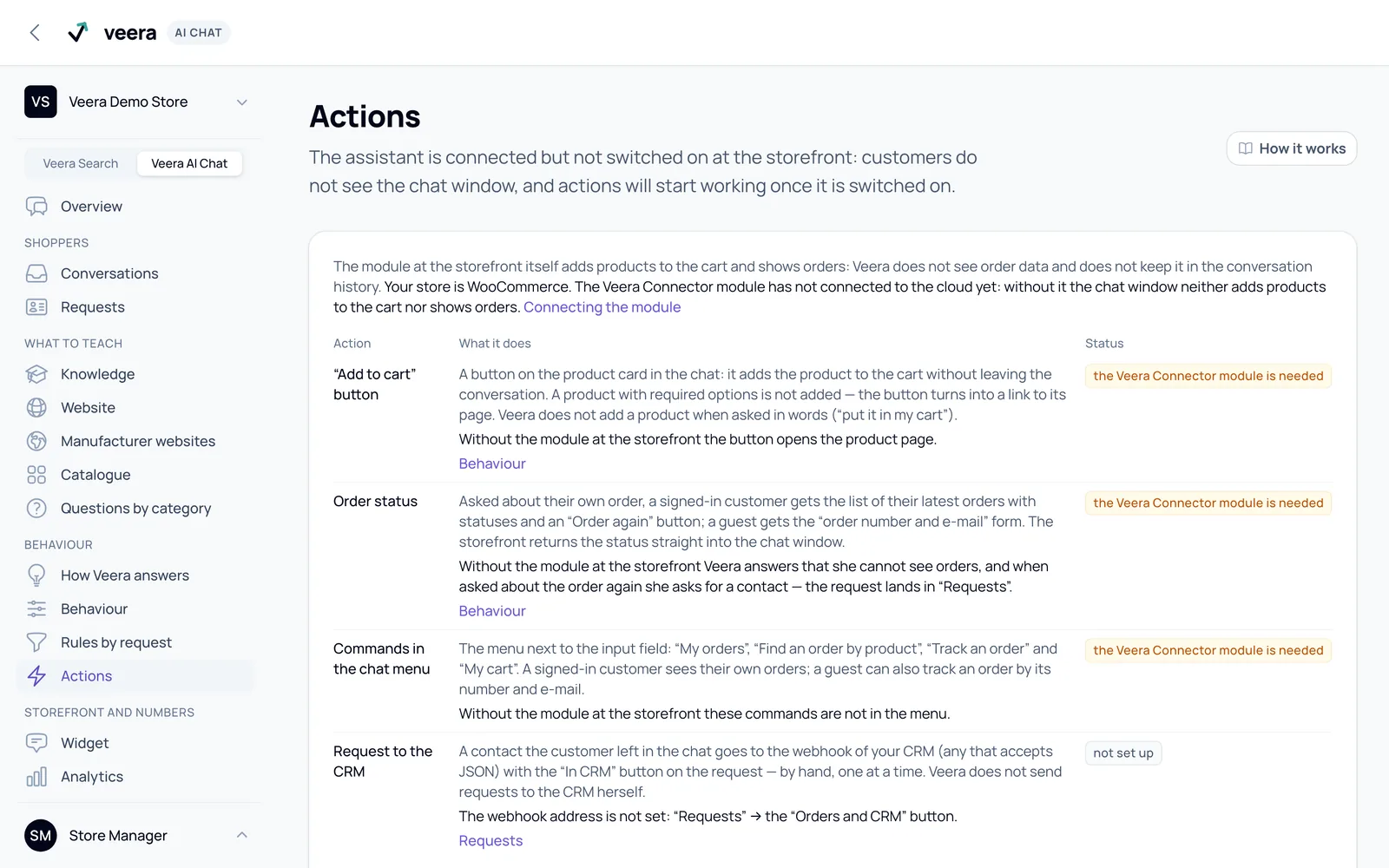
The main rule: the connector on the storefront is what adds products to the cart and shows orders. Veera doesn’t see order data and doesn’t keep it in the conversation history. That’s why the first line of the screen tells you where your store stands with the connector: connected, exporting the catalog only, needed, update due, or not yet available for your platform.
Storefront actions work with these Veera Connector versions: CS-Cart and Multi-Vendor 2.5 (the previous cp_connector module also works), WooCommerce 0.5.0, OpenCart 0.2.0. Without the connector, the chat window advises the shopper and links to the product page.
| Action | What works | Requirements | Where to set it up |
|---|---|---|---|
| “Add to cart” button on the card | Adds the product to the cart without leaving the chat. A product with required options gets a link to its page instead. Out of stock: no button | The connector on the storefront, in the required version. Without the connector the button opens the product page | Behavior, Selling style tab |
| “Put it in my cart” in words | Doesn’t work: Veera doesn’t add products to the cart from a text request | — | — |
| Order status, signed-in shopper | A list of recent orders, up to five: status, total, link, “Order again” | The connector on the storefront, shopper signed in. The storefront provides the data | No setting |
| Order status, guest | An “order number and e-mail” form; the storefront returns the status | The connector on the storefront | No setting |
| Order question without the connector | Veera replies that it can’t see orders. On a repeated question it asks for a contact, and the request lands in Requests | Only on a storefront without the connector | Behavior, Contact collection tab |
| Commands in the chat menu | “My orders”, “Find an order by product”, “Track an order”, “My cart”. “Talk to a person” is always there | The connector on the storefront | Behavior, Selling style tab |
| Order again | A button on the order card adds that order’s items to the cart | The connector on the storefront, shopper signed in | No setting |
| Request to the CRM | The In CRM button on a request sends it to your webhook; the key goes in the X-Api-Key header. Manual, one request at a time |
Any platform; a webhook URL is required | Requests, Orders and CRM button |
| Promo codes and custom actions | Not supported: the assistant can’t call your API from a conversation | — | — |
The screen shows the status of each action with a label: “working”, “switched off in the settings”, “the Veera Connector module is needed”, “update the Veera Connector module”, “chat window is off on the storefront”, “not available for your platform yet” or “not set up”. Until the assistant is connected, every action shows “the assistant is not connected”. Under each description is a link to the screen where the action is turned on.
If you need an integration that isn’t in the table, email sales@veera.space. We add such requests to our queue.