Search widget for your site
One line of code
Get the code on the Store → Storefronts → Widget code screen:
<script src="https://api.search.veera.space/widget/v1.js" data-key="pk_…" data-lang="en"></script>Paste it before </body>. The widget finds your site’s search field on its own (a search type field, a q field, or a form with role="search") and takes it over: focus opens the window, typing runs the search, and Enter submits your site’s own form or goes to the results page if one is set. Queries are accepted only from the storefront domains listed on the Storefronts screen.
Settings in the dashboard
Store → Widget is where you set everything the window shows and how it looks, without editing code. Pick the Storefront first: each storefront has its own widget settings. On the right is a live preview on your store’s catalog: it updates instantly, and changes go live on your site after you click Save (the widget picks them up within a minute). Reset to defaults returns the storefront’s widget settings to the defaults.
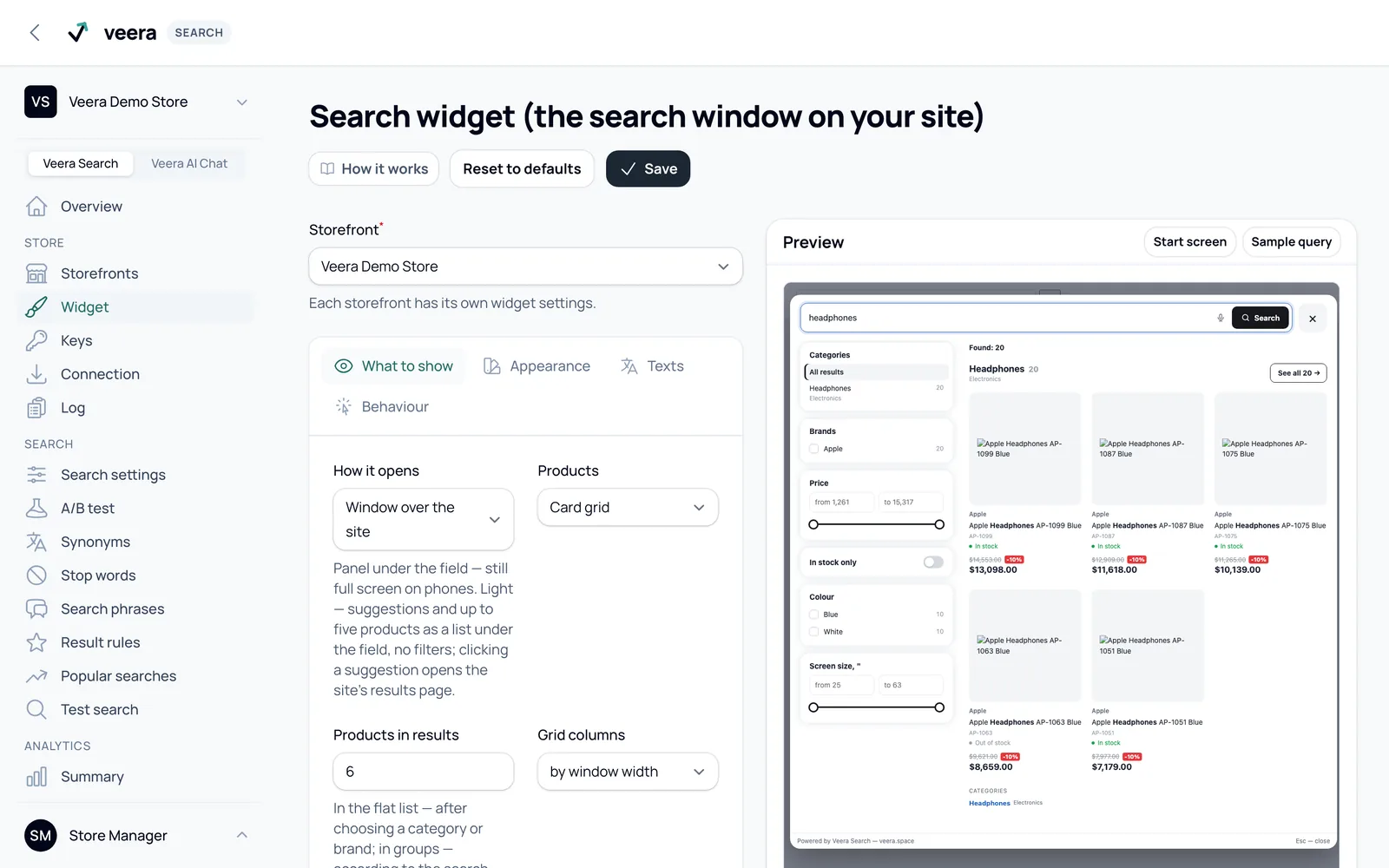
- What to show. How it opens: Window over the site, Panel under the search field or Light: suggestions under the field, no window. Light mode shows typing suggestions and up to five products as a list right under your site’s search field, with no window and no filters: the arrow keys move through the list, and Enter or a click on a suggestion opens your site’s results page. It suits stores whose own results page is the main one. Products (Card grid or List), Products in results and Grid columns set the layout. Start screen — before anything is typed: Show the start screen, Popular searches, Popular products and Popular products, count. Blocks in results: Categories (left), Brands (left), Price filter, Links to categories and brands, Autocomplete, “Did you mean”, On empty results — similar searches, categories and products, Attribute filters, “Recently viewed” and “Bought together” on the start screen and “Also searched” under the results. In the product card: Product code, “Out of stock”, Old price, Discount and the “Add to cart” button (it needs the cart link on the Behavior tab).
- Appearance: Accent color, Button color, Theme (Light, Dark or Follow the shopper’s system), Font (Same as the site or System), Card size (Compact, Regular or Large) and Corner radius, px.
- Texts, per storefront language: Search field placeholder, “Popular searches” heading, “Popular products” heading, Nothing found, Hint when nothing is found, “All results” link, “Show more” button and “Add to cart” button.
- Behavior: Search from … characters, Delay after typing, ms, Open with Ctrl+K / ⌘K, Voice input, Events to GA4, Site results page (
/search?q={q}) and “Add to cart” link (/cart?add={id}).
The window footer shows a Powered by Veera Search caption on the left with a link to our site, in small, muted type. On phones, in panel mode and in light mode, it is a thin line at the bottom of the window, and the same goes for the CS-Cart module’s window. Your store’s own results page has no caption. The caption is on every plan and cannot be turned off in the dashboard; only Enterprise has a window without it. On CS-Cart, it appears after you update the Veera Connector module to version 2.6; older versions do not show it. The widget on WooCommerce and OpenCart shows the caption right away. The assistant has its own badge; its rules are in the assistant settings.
Attributes for special cases
You rarely need attributes in the tag. An attribute you set takes precedence over the dashboard setting:
data-input="selector": if the search field was not found automatically;data-button="selector": a button that opens the window (for sites without a search field);data-currency,data-group: currency and customer groups, if they depend on the shopper;data-voice="off": no microphone;data-analytics="on"or"off": send or do not send events to your site’s analytics;data-preview="1": do not use; this is the dashboard’s preview mode.
From a script, open the window with CpSearch.open('query'); the open, results, click and addToCart events are available through CpSearch.on(...).
Analytics
The widget sends queries, product clicks and “Add to cart” clicks on its own. They go to Analytics in the dashboard: popular and zero-result queries, and clicks and orders by product.
The same events can also go to Google Analytics 4 if it is on the page. This is controlled by the Events to GA4 switch on the Behavior tab of the Widget screen, which is off by default. The data-analytics attribute on the widget tag overrides it for that page: "on" turns the events on, "off" keeps them off whatever the switch says.
- GA4 gets the standard events
search(withsearch_term),view_search_resultsfor zero results, andselect_itemandadd_to_cartwithitems. They are sent throughgtag, or throughdataLayerifgtagis not on the page (for GTM, the events are namedveera_search,veera_select_itemand so on).
Recommendations in the widget. On the start screen, before anything is typed: Popular searches, Recently viewed (products opened from the widget; up to 8 are kept in the shopper’s browser and never sent anywhere) and Bought together (products from the same store orders as the ones viewed). Under the results: Also searched, queries typed in the same sessions (by at least two shoppers). Everything is calculated from your own statistics over 30 days, with no external models. You can turn these blocks off on the What to show tab of the Widget screen.
Voice input is a microphone button in the window, available in browsers with speech recognition (Chrome, Safari, Edge). Turn it off with the Voice input switch on the Behavior tab or with data-voice="off".