Search settings and dictionaries
What search does out of the box
Word forms (stemming for 9 of the 13 catalog languages, including English, German, French, Spanish and Italian), typo tolerance, search by product code, features and description, ranking by popularity. Settings let you tune this to your catalog.
Search settings
Search → Search settings has three tabs:
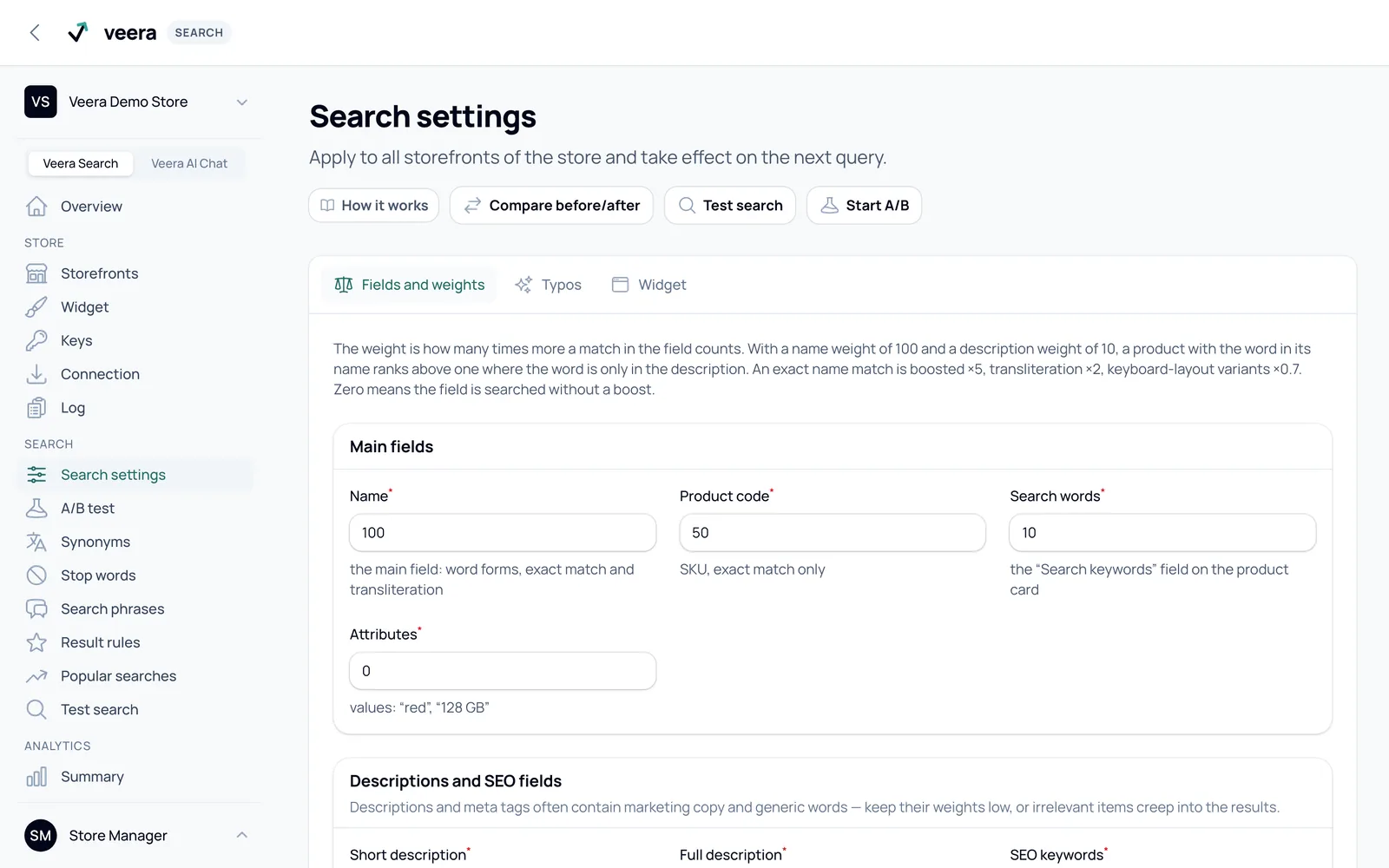
- Fields and weights sets how much more a match in one field counts than a match in another. The fields come in two groups, Main fields and Descriptions and SEO fields. Defaults: Name 100, Product code 50, Short description 20, Full description and Search words 10 each, Attributes 0 (zero means “searched without a boost”). SEO keywords and SEO description carry a weight of 100. If your meta tags hold marketing copy, lower them, or irrelevant products get into the results. An exact name match is boosted ×5.
- Typos has the Typo tolerance switch: Strict (no typos), Normal (one error in words of 3+ letters, two in words of 6+), Relaxed (up to two errors in any word, the first letter must be right) and Custom values. With Custom values, Fine-tuning per field opens: Typos per word (by word length, no typos, 1 or 2), Leading letters without errors and Word variants, at most. Typos are tolerated in Name, Search words and Attributes; the product code is always matched exactly. The two switches below the tolerance setting, Typed text always above keyboard-layout variants and Typos also in layout/transliteration variants, only matter for catalogs in Cyrillic; a store with a Latin-alphabet catalog can leave them as they are.
- Widget has four sections. Results: the result order, out-of-stock products, Products in the widget, Categories on the panel, Products per category group, Brands, categories, vendors per block, Brands in refinements, Refinements (brands, categories, vendors) in the widget, Understand the phrase, Pages and articles in the widget and Price filter. Start screen and recommendations and Attribute filters are described below. Where to search and suggestions: In the short description, In the full description, In keywords, By product code, Keyboard-layout and transliteration variants, “Did you mean”, On empty results — similar searches, categories and popular products, Autocomplete while typing and Autocomplete suggestions (the widget shows up to six suggestions, up to five in light mode).
Your plan sets how long query history is kept. You can shorten it with Keep query history, days at the bottom of the Widget tab: from 7 days up to your plan’s period. An empty field means the plan’s period. Queries and events older than that are removed by a nightly cleanup and cannot be restored. Periods per plan are listed in Analytics and log.
Result order (Widget tab) offers five options: by relevance, newest first, by price, cheapest first, by price, most expensive first, and by name. “By relevance” puts the best matches first, with popular products higher among equal matches. Price, newest and name are applied strictly, even when the query contains text.
Out-of-stock products (Widget tab): show keeps the product in the results marked “out of stock”; show last puts what can be bought first, under any sorting; hide removes the product from the widget, suggestions and the results page. It applies at once, without resending the catalog.
Start screen and recommendations (Widget tab) controls what search computes for the widget. Popular searches: your own list sets the queries shown before the shopper types anything. If the list is empty, the most frequent shopper queries of the past month are shown instead; Popular searches: how many sets their number (1 to 20). Compute “Also searched” turns on the block under the results: what else was searched in the same sessions over 30 days. Compute “Bought together” turns on the block on the start screen: what was ordered together with recently viewed products; it needs order events from the storefront. Whether a block appears on the site is decided by the storefront’s widget settings, and a block switched off here will not appear anywhere.
Understand the phrase (Widget tab): “red dress under 50” searches for “dress” with a price up to 50 and raises red items; “samsung tv from 500” finds Samsung TVs from 500. Price is recognized by words such as “under”, “up to”, “below”, “from”, “over”, “above”, by the “k” suffix and by ranges like “300-500”. Brand is recognized from the store’s brand list, a feature from filter values (matched by word stem). Price and brand become filters, while a feature becomes a soft boost (×3), so products without that feature are not thrown out. The window shows an Understood: dress · under 50 · Samsung line and a search as typed link. No neural network is involved, so it works instantly and predictably.
Take shopper behavior into account (Widget tab): products that were clicked from search, added to cart and bought more often over 30 days get a soft lift. The score is multiplied by 1 + ln(1 + strength × (clicks + 3·carts + 10·orders)). Exact matches and products pinned by a rule still come first, and the lift is not applied when the shopper sorts by price or name. How strongly: slightly, moderately, noticeably or strongly. Recalculated once a day, at night.
Attribute filters (Widget tab): with Show attribute filters on, color, size, material and other product attributes appear as filters in the widget and add-on window, with value counts, and as from/to ranges for numbers. Pick attributes in Which attributes (the list is built from the index and shows the label, code and number of products); the order you pick them in is the order in the window. If you leave it empty, the most widely filled attributes are shown automatically, as many as How many to show automatically allows (brand is not duplicated, it has its own block). Values per filter limits how many values one filter lists. Text features (descriptions, part numbers) do not become filters: a feature counts as text if at least 20 products have it and it has more distinct values than 80% of those products. Values come from the Veera Connector add-on (product features) or from the feed (features in Google Merchant, attribute columns in CSV and JSON). In a feed, list values are separated with |: “Red|Blue”.
Changes apply to the next query; no reindexing is needed.
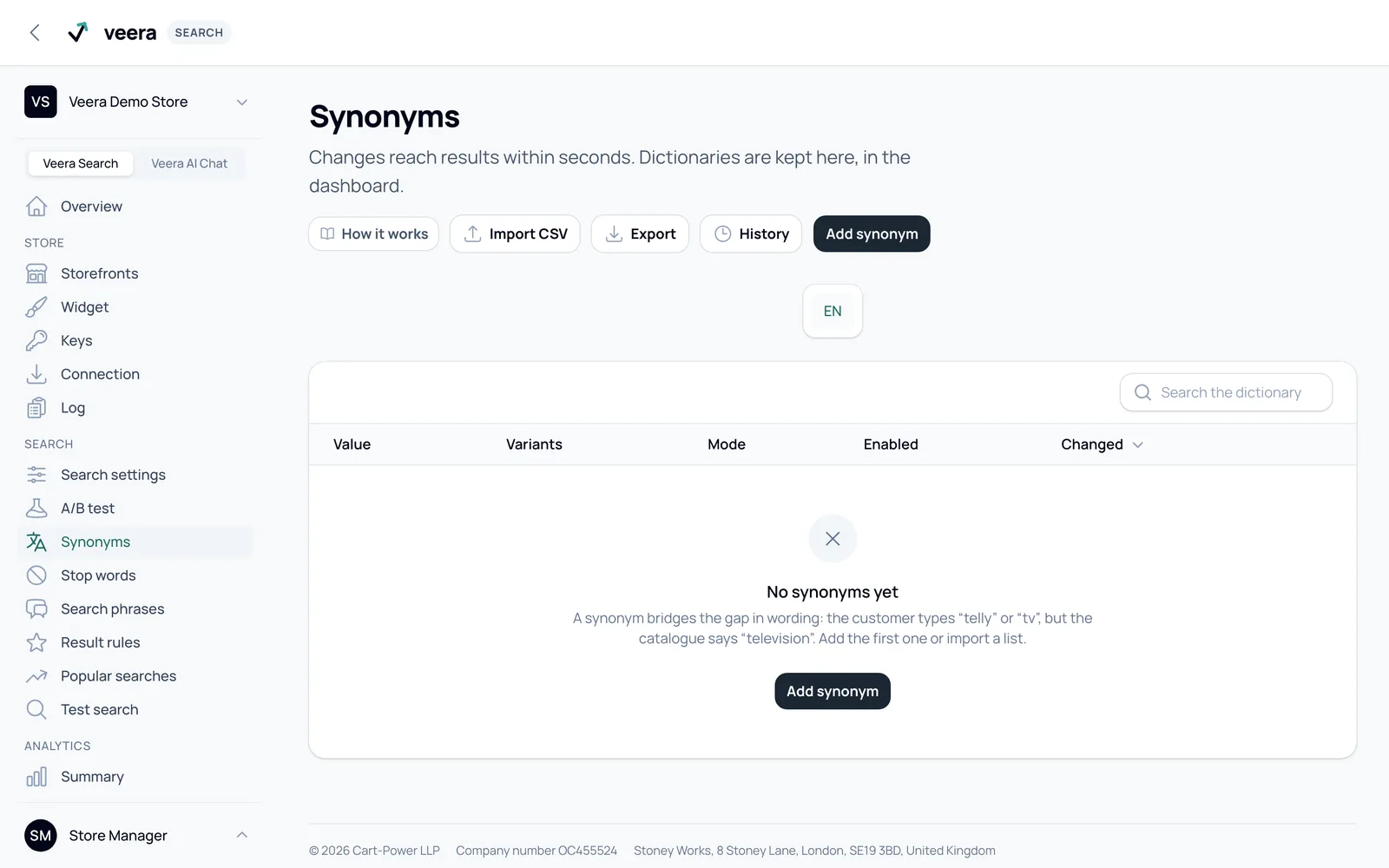
Synonyms
Search → Synonyms: “telly → tv”, “tele, telly → tv”. A synonym has a Value, the word as in the catalog (“tv”), and Variants, what shoppers type instead (“telly, tele”). Mode sets the direction: both ways (the default) means “telly” finds “tv” and vice versa; one way means “telly” finds TVs, but not the other way round. You can upload a list with Import CSV; on CS-Cart, synonyms arrive from the add-on when it connects.
Synonym suggestions. Every night the service goes through zero-result queries and looks in the catalog for a replacement for the missing word: by the start of the word (“tele” → “television”), by similar spelling, by similar queries that do return results. Suggestions appear on Analytics → No results in the Suggestion column, with the source and the number of products. Accept adds the synonym at once; Dismiss suggestion stops it from being offered again. Find suggestions runs the search for suggestions without waiting for the night. In a phrase, only the word missing from the catalog is replaced.
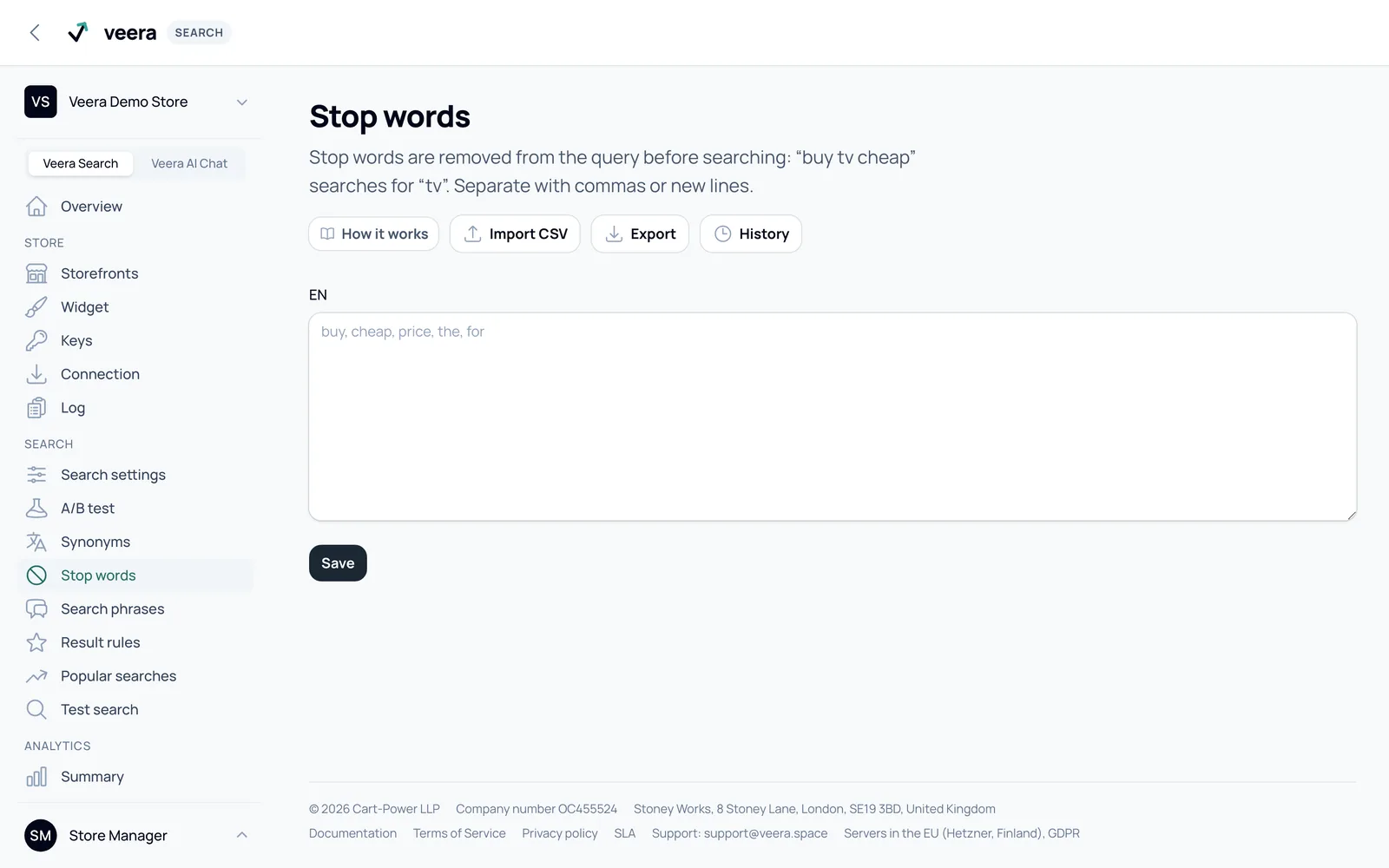
Stop words
Search → Stop words lists words that search ignores: “buy”, “price”, “cheap”. Without them, the query “buy cheap tv” looks for all three words and finds less. Each store language has its own field; separate words with commas or new lines. Import, export and history are described below.
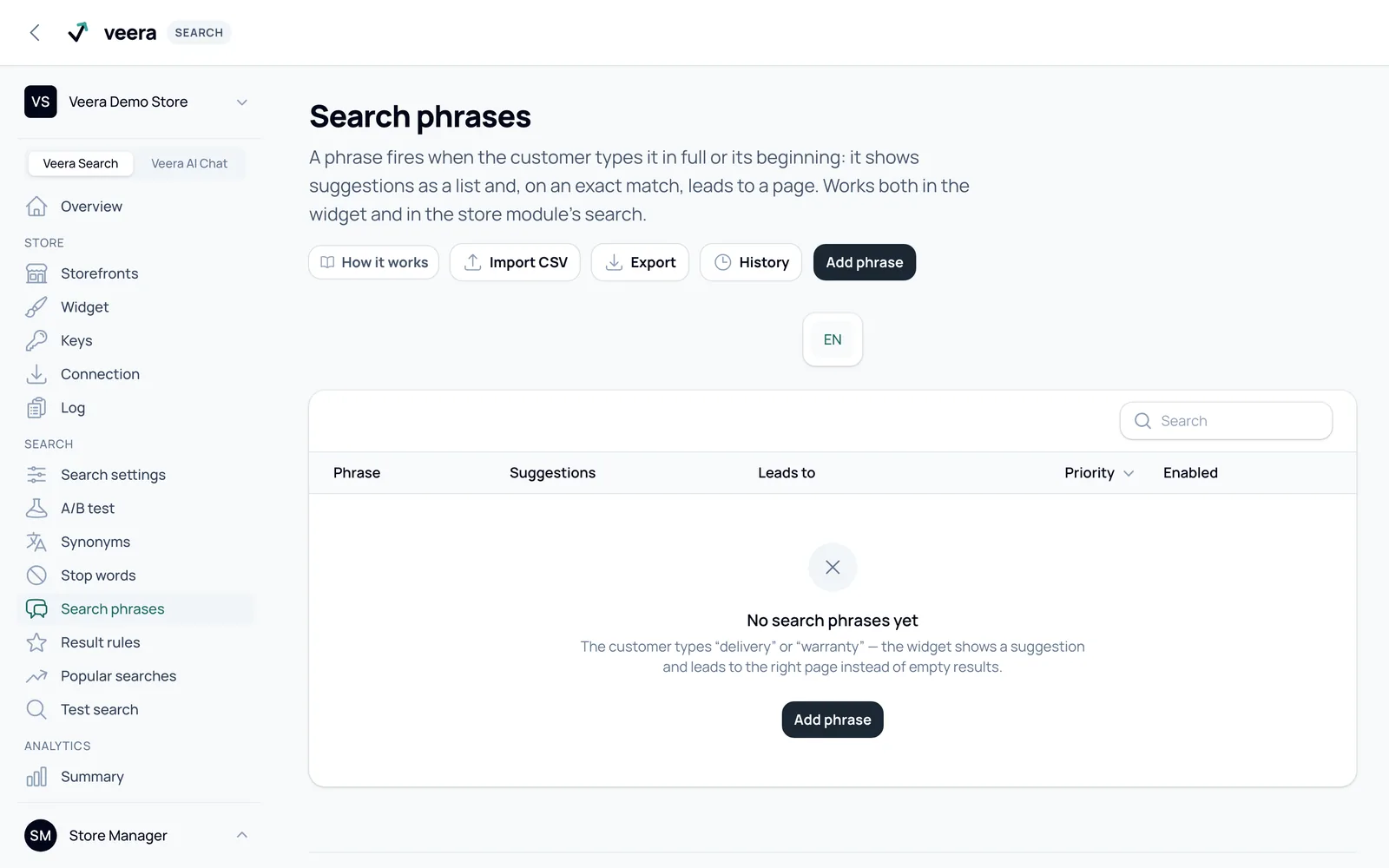
Search phrases
A query leads to suggestions and a link to a page: “shipping” leads to the shipping terms, “warranty” to the warranty page. Each entry has a Phrase (the shopper’s query), Suggestions in the widget (may be left empty), Leads to (a category, a collection, a terms page) and a Priority (higher comes earlier in the list). A phrase fires on a full match or on the start of what was typed (“ship” → “shipping”). Suggestions show in the window and in the widget, while the page address is offered on an exact match (a result rule with a redirect takes priority over a phrase). Stores on the CS-Cart add-on show the same phrases from the dashboard; the add-on’s local table remains only for installations without dictionary sync. To control which products appear, use result rules.
Import and export. Synonyms, stop words and phrases have Export and Import CSV buttons. Export downloads a file with lines like language;value;…. Import CSV opens a Lines field: paste short lines such as “tv;telly,tele” or lines from your own export. For synonyms and phrases, an entry with the same value is replaced. Stop words work differently: one line holds one word or several separated by commas, words are added to the saved ones, and duplicates are skipped. This is how you move dictionaries between stores or edit them in a spreadsheet.
Dictionary history
Synonyms, stop words and search phrases have a History button. Before every change (a synonym added, stop words saved, a file imported, dictionaries pulled from the add-on) the state of that language’s dictionary is saved, keeping the last 30 versions per dictionary. The list shows when, who and before what: “20.09 10:41 — before CSV import (anna@example.com) — 12 entries”. Restore returns the dictionary to the chosen version; the current state also goes into history, so a rollback can itself be rolled back. Applies to the next query.
Popular searches
Search → Popular searches shows what shoppers see in the Popular searches block before they type. A query gets there when it finds products and at least three different shoppers searched for it over 30 days; searches without a shopper session and service checks do not count. The Now in “Popular searches” table lists each Query with its Language, Queries and Clicks. Hide removes a query from the block after a confirmation. If you set your own list in Popular searches: your own list in the search settings, the start screen shows that list, and this one is shown on empty results.
Below the table, Hidden queries and stop words has two lists. Hidden queries are not shown in Popular searches, Also searched or in similar searches on empty results; remove a query from the list and it comes back if shoppers still search for it. Block stop words keep any query that contains such a word or phrase out of these blocks, for example a test word or a competitor’s name. They do not affect search itself; that is what Search → Stop words is for. Click Save; changes apply to the next query.
Test search
Search → Test search runs the same engine as the storefront, but without writing to analytics. Next to the Query you can pick the Storefront, Language and Customer group (customer group IDs separated by commas; they affect prices and visibility) and turn on Exact match. The result shows the strategy (strict (all words), relaxed (some words) or “Did you mean”), the query variants, the result rule that fired and its boosts, the blocks and the top products. It is the first tool to open when search “doesn’t find” something.
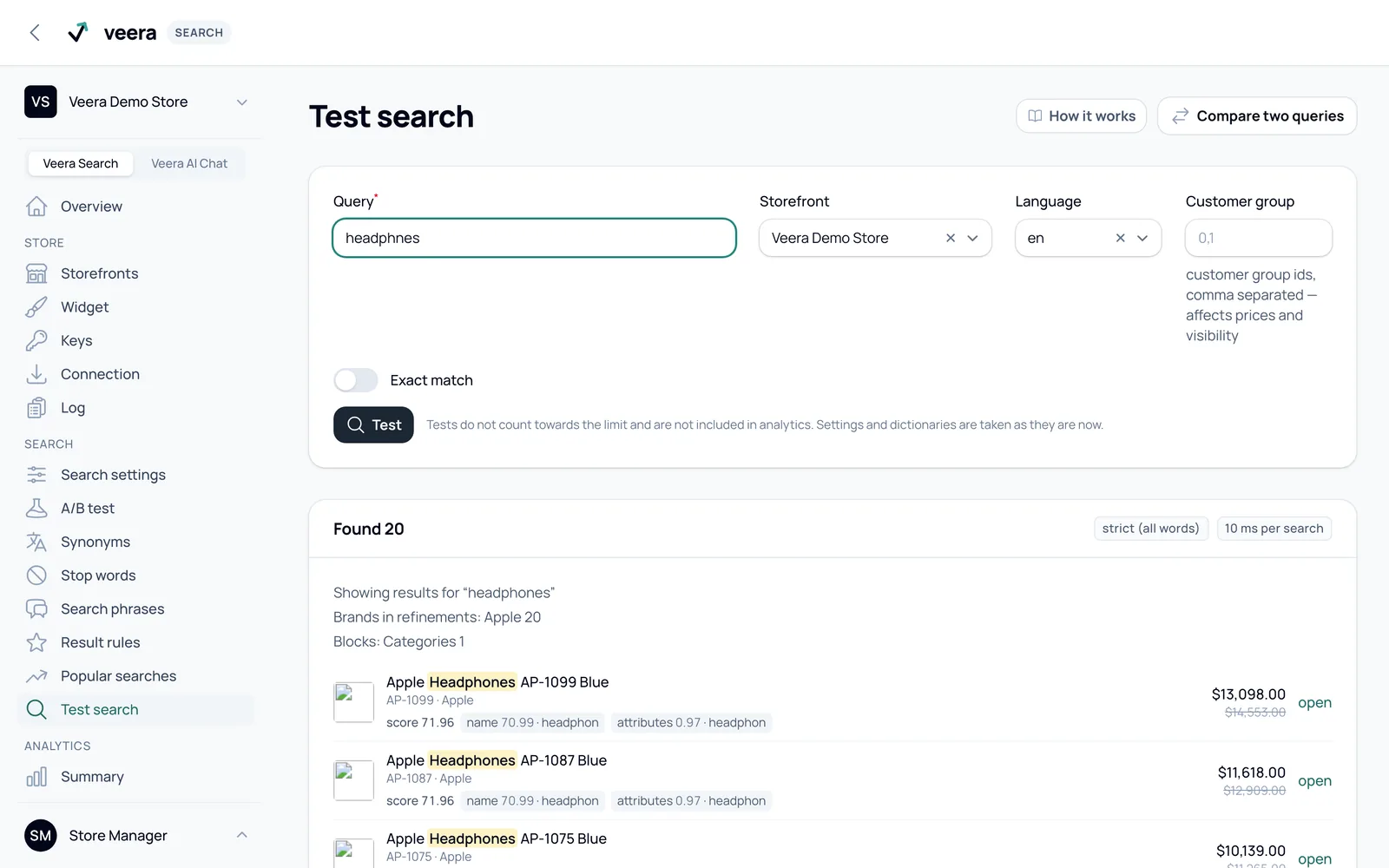
Why this product is here. Under each product you see the engine score and which fields matched which words (“name · tv”, product code, features), a match through a typo (“televison → television”), the tier (“pinned by a rule”) and rule boosts (“boost ×1.5”). Field weights are changed in Search settings.
Comparison. Compare two queries puts two result lists side by side, for example “television” and “televison”. In Search settings, Compare before/after runs one query with the current settings and with the changes you have made but not yet saved: ↑↓ arrows show how many positions a product moved, and “new” means it was not in the other top ten. The draft lives until you save the settings or the session ends.
Product in the cloud catalog. At the bottom of the screen you can check whether a product has reached the cloud. Enter the product ID or SKU and click Find product: the dashboard answers “in the index”, “waiting to be indexed” or “deleted” and shows when the product was last updated. If the cloud catalog has no product with that ID, the store never sent it or it was rejected on upload. A product hidden or disabled in the store is marked separately: it will not appear in results.
Typical causes: the product is inactive or in an inactive category; the word appears only in the description and description search is off; a synonym is written in the wrong direction; the product is excluded by a rule.
A/B test
Search → A/B test lets you check new settings on live shoppers instead of judging by eye. Change field weights, typo tolerance or the Widget tab settings in Search settings and, instead of Save, click Start A/B: the unsaved settings become variant B and the saved ones stay variant A. Shoppers are split by session, so one person always sees the same variant. You can set the share of sessions for B (50, 30, 20 or 10%).
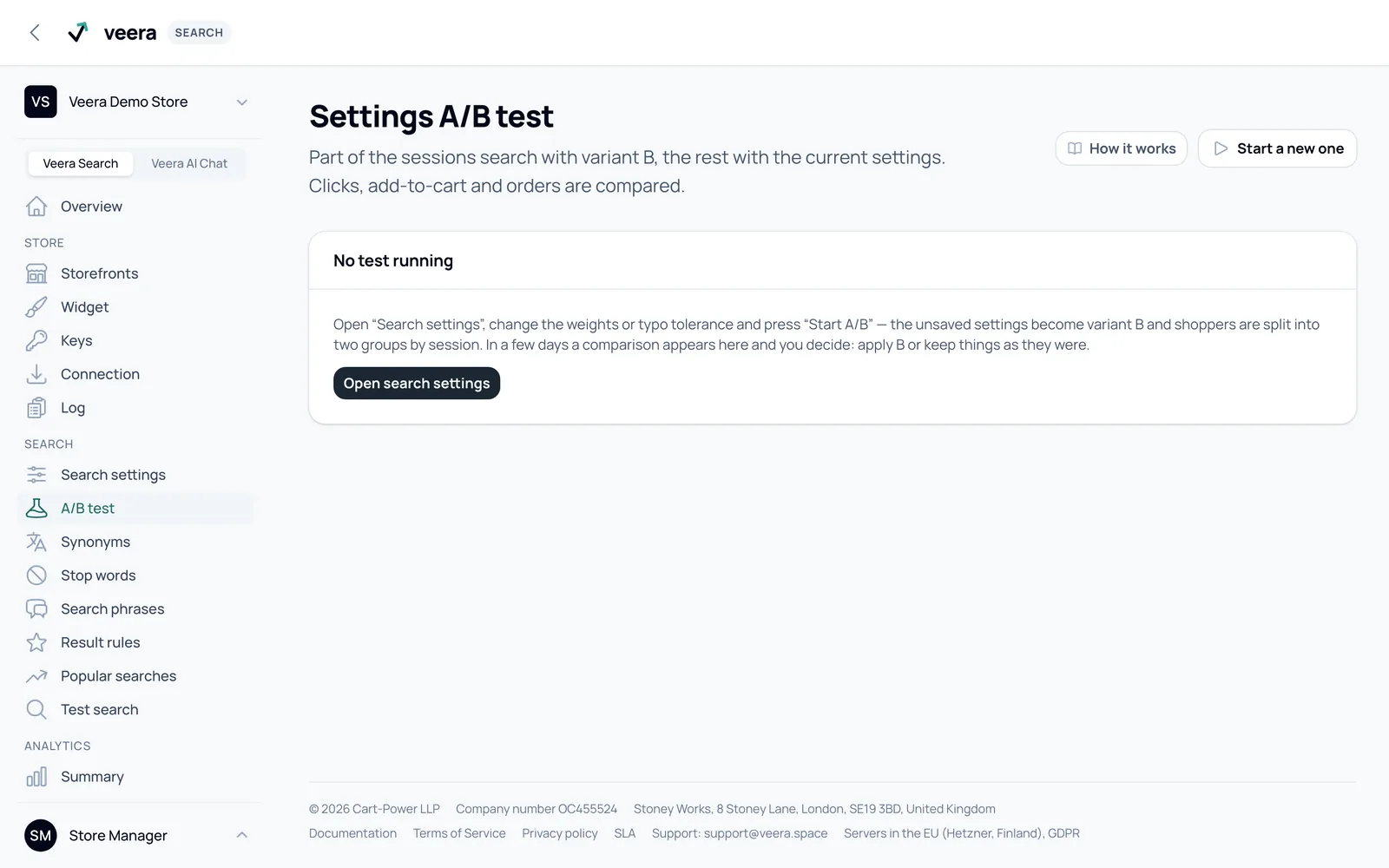
The test page has an A vs B table: searches, sessions, clicks and add-to-carts per 100 searches, orders and revenue. Clicks and carts are counted for the same sessions that searched in that variant. Once each variant has at least 30 searches, the dashboard tells you whether the difference is significant (two-proportion z-test, threshold 1.96) or still noise. This usually takes a few days.
Then there are two actions: Apply B makes variant B the search settings for everyone and ends the test; Stop returns everyone to the current settings. Past tests stay in the list with their results. One test runs per store at a time. Test search and Compare before/after are not part of the test: they always show what you have set.