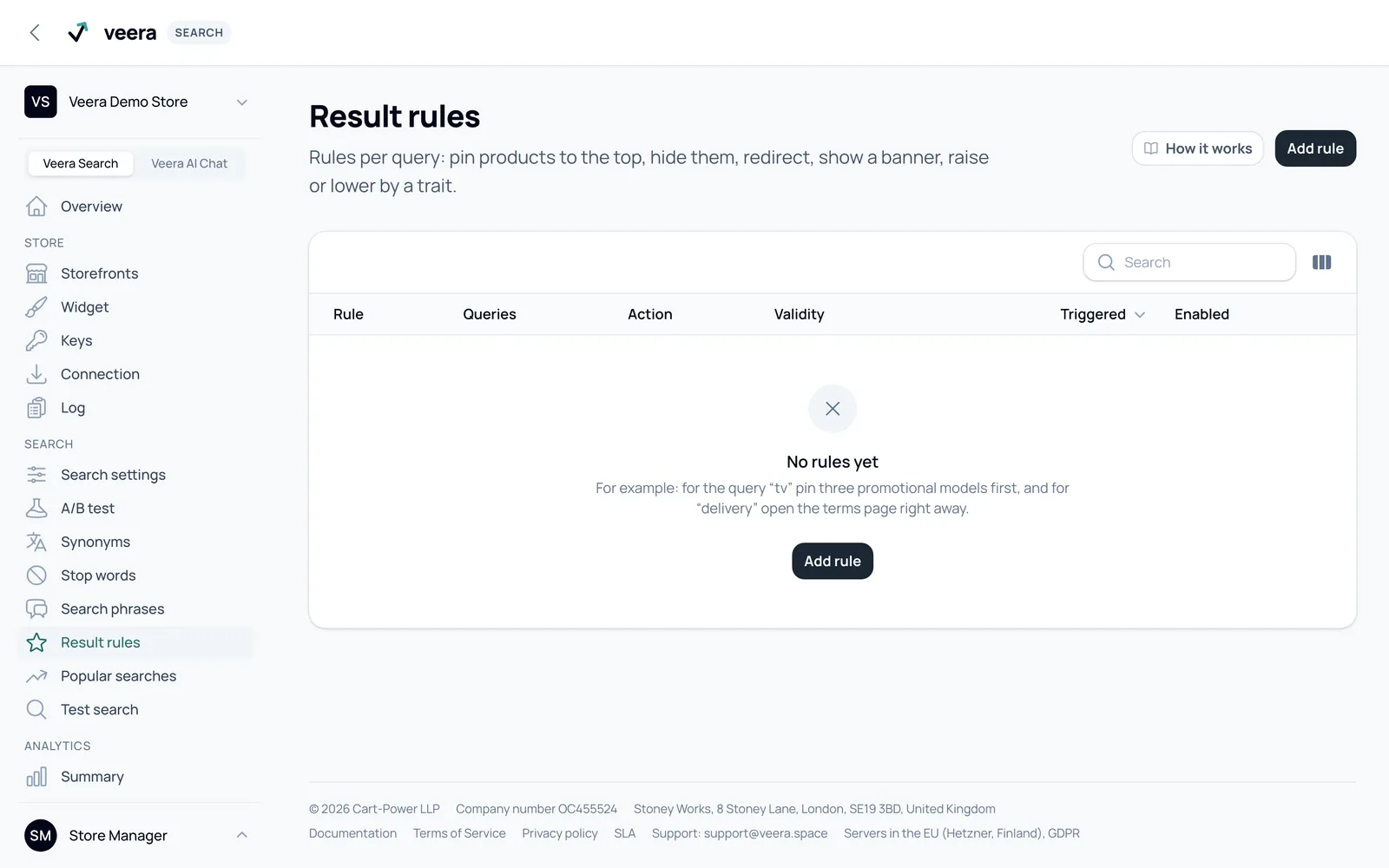
Result rules
What a rule is
Search → Result rules. A rule fires on a shopper’s query and performs one or more actions:
- Pin first: the chosen products come first in the order you set, under any sorting, including inside category groups;
- Exclude from results: the products are not shown for this query;
- Redirect to a page: the window and the widget show a “There is a page for this query” line with an Open → link, and Enter takes the shopper there; on CS-Cart the results page redirects right away;
- Banner above results: an image with a link and text above the products for this query;
- Raise or lower by a trait: products in stock, new arrivals of the last N days, discounted products, a brand, an attribute value or a category rank higher (×1.5, ×3) or lower (×0.5, ×0.2) than the rest, because the score is multiplied by the weight. Pinned products and exact matches still come first. To apply it to all results at once, choose the “any query” match, and no phrases are needed.
How to set up a rule
Add rule opens the form. Rule name is for you only, for example “TVs — September promotion”; the shopper never sees it.
- Customer queries: one or more, for example “tv, tvs, television”. Matching ignores letter case and extra spaces.
- Match: six options: exact match; starts with; contains (catches “buy tv 55”); regular expression, for complex cases; any query, for boosts across all results; category page. The last two have no Customer queries field.
- Pin first and Exclude from results: products picked from the index by name, code or ID. For Pin first, the order you pick them in is the order in the results. The Enabled switch next to them turns the rule on or off.
- Valid from and Valid until: a date and time for promotions. The rule stays silent before the start and after the end; an empty field (“no limit”) means no limit on that side. The end cannot be earlier than the start. In the list, the Validity column shows the start and end dates.
- Order: if several rules match, the one with the lower number fires.
- Raise or lower: one or more conditions, added with Add condition. Who is the trait: in stock, new arrivals, discounted, brand, attribute (pick the attribute and its Value) or category. How much is the weight: much higher (×3), higher (×1.5), lower (×0.5) or much lower (×0.2). For new arrivals, Within how many days sets what counts as new (30 by default). Boosts add up across all matching rules, while pins and redirects come from the first rule in order. A rule with boosts only does not override other rules.
- Banner above results: an Image (PNG, JPG or WebP up to 1 MB, ideally 1200×300, or paste a link into …or image URL), a Link, a Title and Text. It appears above the products in the widget and add-on window while the rule is active: a promotion, a collection, a brand page. An image or a title is enough; without an image you get a text banner.
A pinned product must be in stock and visible to the shopper, otherwise it is not shown, like any other product. Typos in the query are still corrected even when a pinned product matches.
A rule for a category page
The category page match works without a query: the rule fires when a shopper opens a store category whose products come from the cloud. In the CS-Cart add-on this is the Category pages via the cloud setting; in your own integration it is a search request with the category parameter.
Instead of queries, the form has a Store categories field. Categories are picked from a list built from the index: search by name or ID and pick as many as you need. A parent category with no products of its own is not in the index; add it by typing its ID, and the list marks it “not in the index”. Everything else works as in a regular rule: pin products first, exclude, raise or lower by a trait, add a banner above results.
When you switch the match from a query type to “category page” or back, the field is cleared: queries and categories take turns in it and are not carried over to each other.
Testing and the counter
The Test search button next to a rule opens that screen with the rule’s first query, so you can see what fired and which products are pinned. Rules with a regular expression, “any query” or “category page” have no such button, since they have no query to substitute. The Triggered column in the rule list shows how many times each rule has fired and when it last did.
What goes into rules and what into dictionaries
- The shopper’s word differs from the catalog’s word (“telly”): a synonym.
- You need specific products above the rest, or need to hide the wrong ones: a result rule.
- The query is not about a product (“shipping”, “warranty”): a search phrase with a link to a page.