Connecting WooCommerce
What the plugin does
The Veera Connector plugin sends the store’s catalog, pages and posts to the cloud and replaces the built-in WordPress search. The same plugin connects the Veera AI Chat assistant. Instead of a LIKE query against the posts table, shoppers get a window with suggestions as they type, a results page with facets, and search that handles typos and SKUs. Nothing heavy stays on the store’s server: the index and search live in the cloud.
Requirements
- WordPress 6.8 or later (tested up to 7.1) with WooCommerce 9.1 or later (tested up to 11.1) installed and active: without WooCommerce the plugin shows Veera Connector needs WooCommerce to be installed and active. and does nothing.
- PHP 7.4 or later.
- The plugin is compatible with HPOS (High-Performance Order Storage) and with the Cart and Checkout blocks.
WooCommerce keeps the GTIN since version 9.2 and brands with an image since 9.6. On earlier versions products go without them.
This page describes plugin version 0.5.6.
Installation
- Create a store in the Veera dashboard with WooCommerce as the platform. The dashboard issues both keys right away and shows them on the Connection screen: Public key — for the storefront (
pk_…) and Secret key — for the module or API (sk_…). The secret key is shown once. If you didn’t save it, open Store → Keys and click Create key. - Download the plugin in your Veera dashboard: open Connection, the Download the module block is right under your keys. Install it through Plugins → Add Plugin → Upload Plugin and activate it.
- In the store admin, open WooCommerce → Veera Connector. Service address comes filled in with the address of another region: replace it with
https://api.search.veera.space, since keys issued on veera.space work only with this address. Paste the keys into Public key of the storefront and Secret key of the shop, and click Save Changes. Show the Veera window on the storefront and Send product changes to the cloud every five minutes are ticked from the start. Keep the second one ticked: without it the first sync does not start and product changes are not queued. - There is nothing else to start: once the service accepts the keys, the plugin sends the whole catalog by itself, as described in The first full sync.
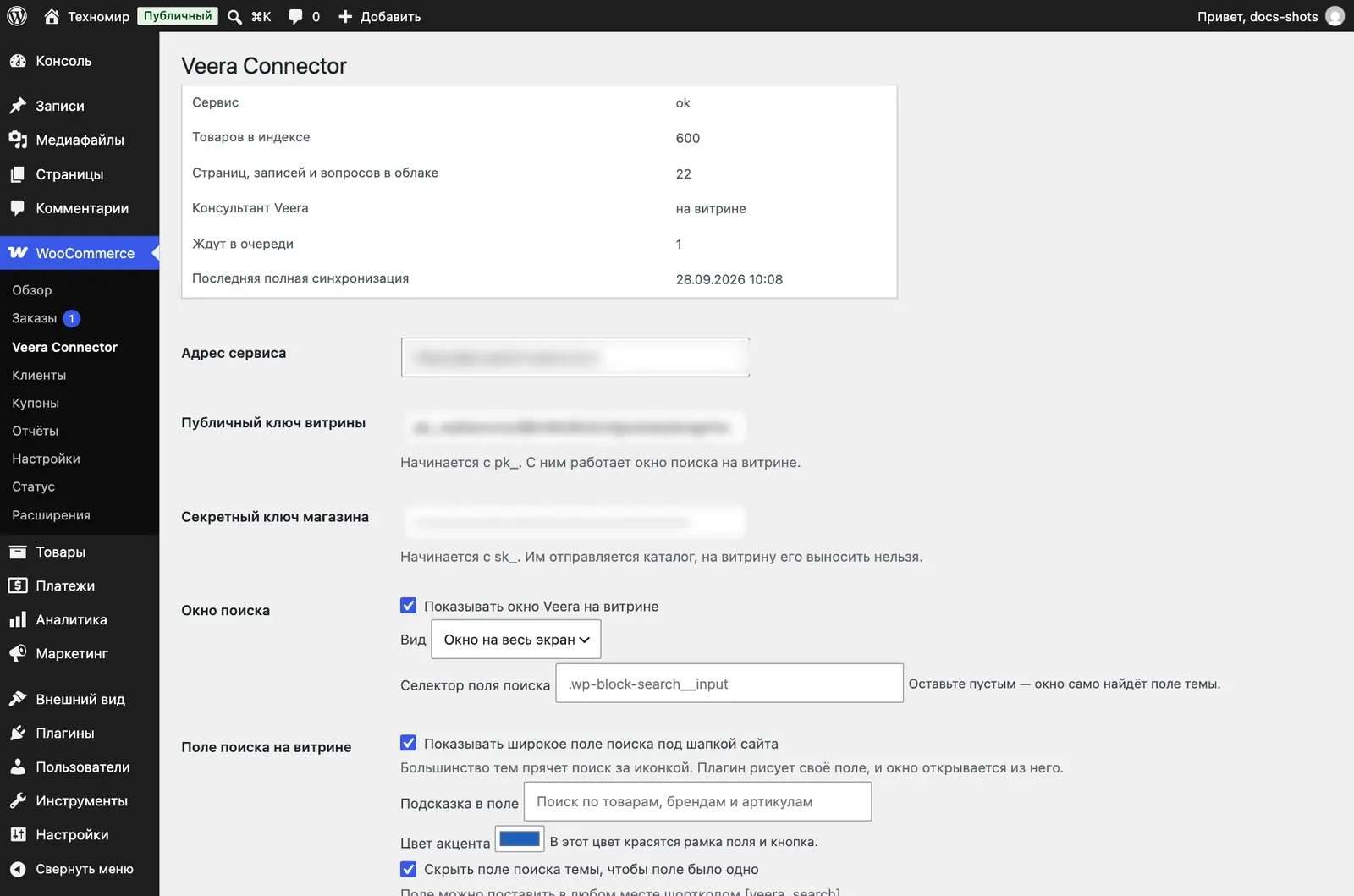
The top of the screen shows the status: Service (whether it responds), Products in the index, Waiting in the queue and Last full sync. If Products in the index is above zero, the store is connected.
The dashboard shows the same on Store → Connection: the WooCommerce card with the plugin version, the time of the last catalog and the number of products in the cloud, and below it the Pages and articles section with the number of texts by type. The checklist on Overview ticks off Catalog received, and The widget is on the site is completed with the first shopper query. Since version 0.5.6 the plugin tells the dashboard whether the search window and the assistant are on the storefront: a change of these settings reaches the dashboard within minutes, without a full sync.
The first full sync
When you save the settings, the plugin asks the service whether it holds any products of your store. If it holds none and the plugin has never run a full sync, the screen shows The keys work and the service holds no products of the shop yet: the first full sync of the catalog has started in the background. Reload this page in a few minutes to see the products in the index.
The sync runs in the background as a WordPress scheduler task, usually right after the save. If the built-in scheduler is turned off, it starts with the next run of your system cron. The plugin sends the catalog in batches and then the pages, posts and FAQ. Reload the settings screen to watch Products in the index grow; when the sync is done, Last full sync shows its date.
- If the service does not accept the keys, the screen shows The first full sync of the catalog starts by itself as soon as the service accepts the keys. Check the service address and the secret key: the error is shown below. The reason is in Last error from the service: … at the top. Correct the field and save again: the plugin asks the service right away. Without a new save, it asks again about once an hour. The previous error stays on the screen until the next queue run, up to five minutes.
- If the sync is cut short, for example by a hosting time limit, the plugin tries again an hour later and carries on where it stopped. After three attempts in all it stops trying, and the catalog is then sent with the button or WP-CLI.
- The decision is made once. If the service already holds products of your store, or the plugin has run a full sync before (a store updated from an earlier version, for example), the plugin does not start one by itself, and saving the keys again never restarts it.
Sync the whole catalog now is the fallback for a resync: after a change of languages, a large import, or when the first sync has given up. The button sends the catalog while the admin page waits, so for a catalog of several thousand products or more the WP-CLI command is more reliable:
wp veera sync --fullOnly one full sync runs at a time. While the first sync is still running, the button does nothing and reports Products sent to the cloud: 0; wait until Last full sync shows a date.
How the catalog is updated
A product edit, a price or stock change, a move to the trash or a deletion, a renamed category, brand or attribute: all of this goes into a small queue inside the store, and the plugin sends it to the cloud every five minutes. Saving a product never waits on the network. If the service is unavailable, the only cost is a delay: the queue waits for the next run.
The queue is driven by the WordPress scheduler, which runs on site visits. The plugin checks its scheduled task on every page load and puts it back if the scheduler has lost it, so the queue doesn’t stop for good after a scheduler glitch (since plugin version 0.5.3). On a store with little traffic, set up a system cron and turn off the built-in one:
# wp-config.php
define( 'DISABLE_WP_CRON', true );
# crontab, every five minutes
*/5 * * * * cd /path/to/site && wp cron event run --due-now > /dev/null 2>&1After installation the plugin runs the first full sync by itself, so a manual one is only needed after a change of languages or a large import. A full sync wraps the catalog in a snapshot, and products the store no longer has leave the index after a grace period, 72 hours by default. How this works and how to change it is described in Catalog reconciliation.
The search field on the storefront
Most themes hide search behind an icon, while the window needs a visible field. The plugin draws its own: a wide bar under the site header, with configurable placeholder text and color. You can hide the theme’s field so the page doesn’t have two search boxes.

The field places itself under the header in the Storefront, Astra, GeneratePress, Kadence, OceanWP and Blocksy themes; in other themes it appears right at the top of the page. You can put it anywhere with a shortcode:
[veera_search]The search window
The window opens as the shopper types and shows products grouped by category, refinements by brand, price and features, autocomplete and query correction. “toshiba televison” finds Toshiba TVs, and an SKU finds the one product.
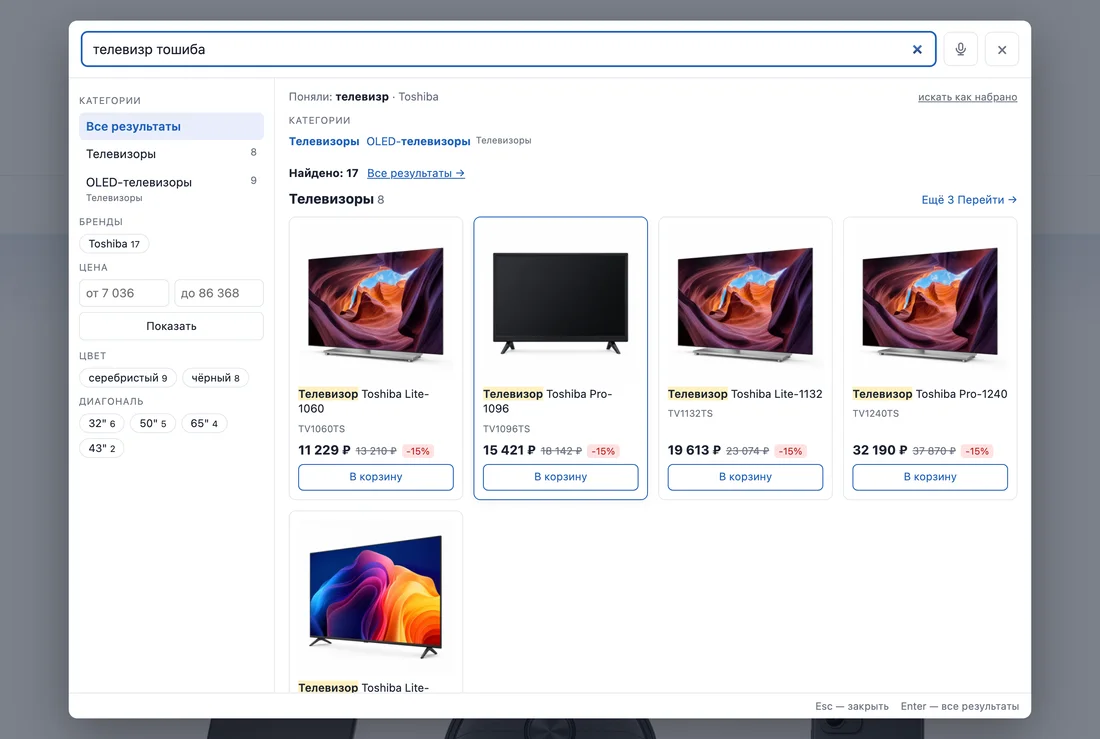
The Add to cart button in the results adds the product to the store cart through the Store API, and the shopper stays in the results. A product that needs a variant to be chosen opens its own page.
A brand in the window shows its image and links to the brand page when the brand has one: WooCommerce Brands, or a brand attribute with archives enabled. A brand without its own page stays a refinement of the results.
SKUs, GTINs and MPNs
The search finds a product by its SKU, GTIN and manufacturer part number (MPN), in full and by part. The GTIN is the WooCommerce field GTIN, UPC, EAN, or ISBN on the product and on each variation. The plugin reads the MPN from the product fields listed in Product fields with the manufacturer part number (MPN): by default _mpn, mpn, _wpm_mpn, and the first one that is not empty wins. If your MPN lives in another field, enter its name, save the settings and click Sync the whole catalog now: changing this setting does not queue the products by itself.
Product tags
Since version 0.5.6 WooCommerce product tags are searched as keywords: a shopper finds a product by a word of its tag, even with a typo. With WPML and Polylang, a translation goes with the tags of that translation. Renaming or deleting a tag sends its products again within five minutes.
Variations
Each variation of a variable product reaches the cloud as its own product, with its price, stock, image, link, SKU, GTIN and MPN. The search window shows one card per model with the variation that fits the query best, and the assistant sees every variation. The SKU of the variable product finds the model card: it goes with each variation too. A deleted variation leaves the search within five minutes.
The results page
Draw the results page with Veera instead of the theme template is on from the start: when you save the settings, the plugin creates the page and routes the standard product search to it. The page has facets for categories, brands, price and features, sorting and pagination; the theme keeps its header and footer.
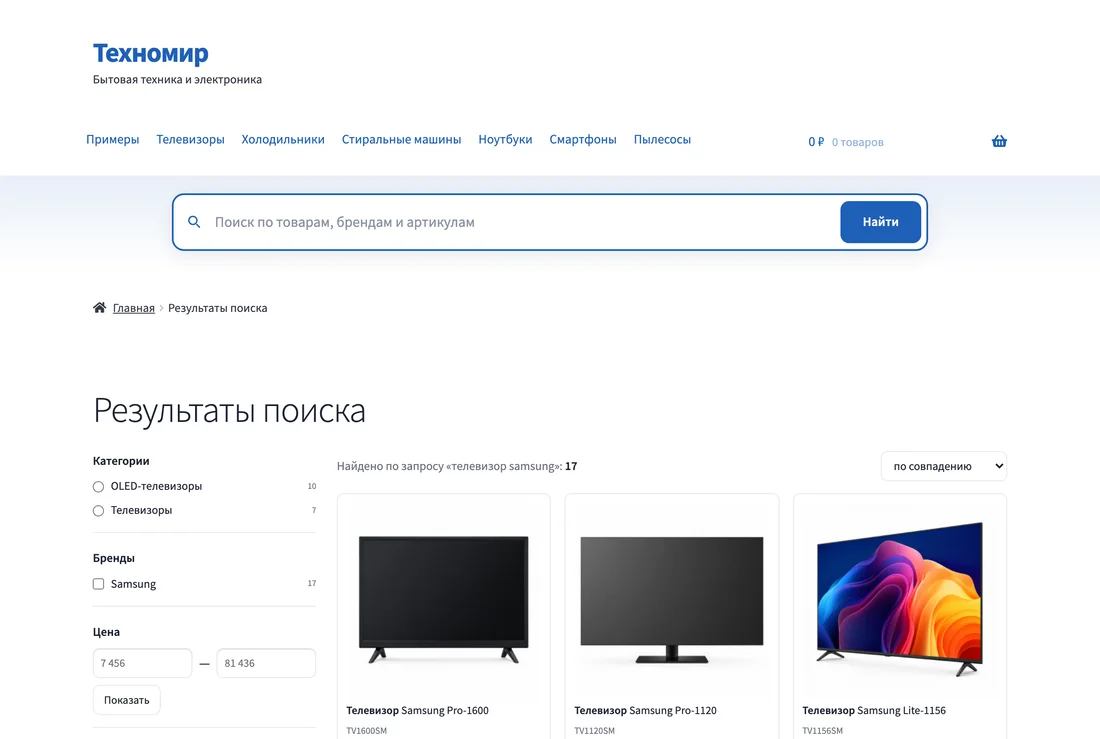
Search across blog posts and regular pages stays with the theme: the plugin only takes over product search.
Languages, currencies and wholesale prices
- Languages. With Polylang or WPML, the translations of a product and its categories go into one document, so the window and the results page show the language of the page they are opened on. Translations are not indexed separately. Catalog languages are selected in the dashboard, in Store settings; their number depends on your plan, and a full sync is needed after adding a language.
- Currencies. Exchange rates are read from WOOCS, WPML Multicurrency or Aelia Currency Switcher. Prices are stored in the base currency and the window converts them at the current rate, so there is no need to resend the catalog after rates change. You don’t need to set the currency in the dashboard: the plugin sends it.
- Wholesale prices. Wholesale Suite and B2BKing prices are sent as customer group prices. A signed-in wholesale buyer sees their own price in search. For other setups there are the
veera_connector_product_pricesandveera_connector_currenciesfilters.
Settings live in the dashboard
Synonyms, stop words, search phrases, field weights, typo tolerance, result rules and the window look are set in the Veera dashboard, not in the WordPress admin. This way the same rules work for both the store and the widget on a site. The plugin keeps only the connection and what concerns the storefront itself: the field, the window, the results page and sync.
The assistant and store pages
Along with products, the plugin sends pages, blog posts and Q&A from popular FAQ plugins: the search window searches them and the assistant answers from them. Turn on Veera AI Chat in the assistant dashboard: it takes the catalog and texts from the same cloud, and the plugin places the chat window on the storefront itself. From plugin version 0.5.0, the chat window adds products to the cart and shows shoppers their orders; which of these are on for your store is shown on the Actions screen.
Updating the plugin
Upload the new version over the installed one: Plugins → Add Plugin → Upload Plugin, then Replace current with uploaded. The settings, keys and queue stay, nothing else needs to be done, and a store whose catalog is already in the service gets no extra full sync. Don’t delete the plugin to update it: deleting erases its settings, keys, sync progress and queue. Since 0.5.5 deleting the plugin also deletes the Search results page it made, unless you wrote something into that page.
Since 0.5.4 the plugin needs WordPress 6.8 or later: an older WordPress refuses to upload the archive, so update WordPress first.
After the update, click Sync the whole catalog now once: the full sync sends product tags (0.5.6), and when you update from 0.5.4 or earlier, also brand images, GTINs, MPNs and variations as separate products. Without it, all of this appears only for the products you edit.
Before updating to 0.5.4, check Service address: it must start with https://. Since 0.5.4 the plugin does not follow redirects, so with an http:// address data stops reaching the service, and the settings screen shows the address to enter.
What’s new in version 0.5.6
- The plugin tells the Veera dashboard whether the search window and the assistant are on the storefront. A change of these settings reaches the dashboard within minutes, without a full sync.
- Product tags are searched as keywords: a shopper finds a product by a word of its tag, even with a typo. See Product tags.
Version 0.5.5:
- The brand image reaches the cloud: the search window shows it on the brand card, with a link to the brand page when the brand has one.
- The search finds the GTIN, UPC, EAN or ISBN of a product and its manufacturer part number (MPN) like the SKU, in full and by part, and the SKUs, GTINs and MPNs of variations the same way. Before, a variation SKU was only an exact keyword and often found nothing. See SKUs, GTINs and MPNs.
- Each variation reaches the cloud as its own product with its price, stock, image and link: see Variations.
- A product moved to the trash or deleted permanently in the product list leaves the search within five minutes. Before, the search window kept it until the next full sync.
- Renaming a brand, an attribute or an attribute value sends the products under it again within five minutes. Before, the new name appeared only after the products were saved again or the whole catalog was synced.
- Once the service accepts fixed keys or a fixed address, the old service error leaves the settings screen at once.
- Sync the whole catalog now counts the products the cloud already held unchanged as sent: before, a resync of an unchanged catalog said “Products sent to the cloud: 0”.
- Deleting the plugin also deletes the Search results page it made, unless you wrote something into that page.
Version 0.5.4:
- WordPress 6.8 or later is required. On earlier versions WordPress does not load the translation bundled with the plugin, and a Russian shop got the settings screen, the search field and the results page title in English.
- Category, brand and attribute names, product names and page titles reach the service as plain text. WordPress stores “&” in a name as
&, so the search window and the assistant showedWashers & Dryersinstead of “Washers & Dryers”. - Products and posts whose image file names contain non-Latin letters or spaces now reach the service with their images. Before, the service refused such a product as a whole, and it was missing from search and from the assistant.
- Requests to the service no longer follow redirects, so the keys never go to another address. A Service address that starts with
http://stops working: the settings screen shows thehttps://address to enter instead. - The plugin’s English texts use American spelling: Sync the whole catalog now, Catalog sync, Accent color and the other settings and notices. The Russian translation is unchanged.
WP-CLI commands
wp veera status              # does the service respond, how many documents are in the index, what is queued
wp veera sync                # send the queue of changes
wp veera sync --full         # full sync with a snapshot
wp veera search "tv"         # check the results from the console
Troubleshooting
- “Products in the index: 0”: the secret key is not set, the service did not accept the keys, or the first sync has not finished yet. Check Last error from the service at the top of the screen and that Send product changes to the cloud every five minutes is ticked. With the built-in scheduler turned off and no system cron, the first sync does not start either. Run
wp veera sync --fullfrom the console: the command shows the service error. - The window doesn’t open: check the public key and the storefront domains in the dashboard. The key is bound to a domain, and the service refuses requests from any other address. Server-side requests still go through, so sync can work while the window does not.
- The queue doesn’t shrink: the WordPress scheduler is not running, for example because
DISABLE_WP_CRONis set without a system cron, or the store gets few visits. Set up a system cron as shown above. - A product is not found: it must be published and visible in the catalog; drafts and hidden products don’t appear in results. Check that, then run
wp veera search "…". In the dashboard, the Product in the cloud catalog block on Search → Test search looks the product up by ID or SKU and shows whether it reached the cloud.