Conversations, requests and analytics
The Conversations screen
Shoppers → Conversations is a live queue: the list updates by itself, so you don’t need to reload it. Filters above the list: Inbox, Mine, All, Waiting for an operator, With an operator, With a contact, poorly rated answers (the thumbs-down icon) and Test. A conversation that has waited longer than the promised response time is highlighted.
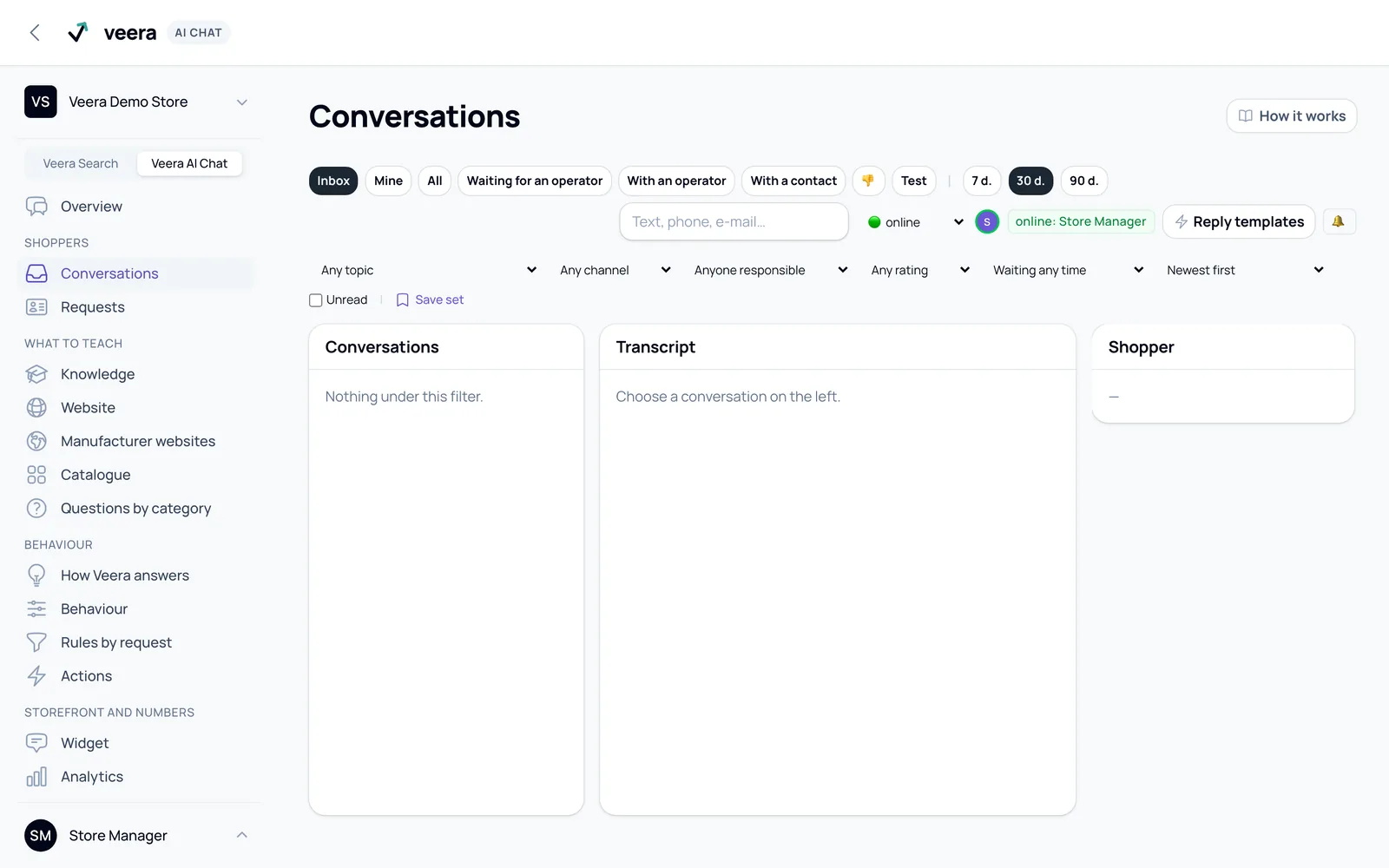
The bell above the list turns on sound, browser notifications and a counter in the tab title. It also subscribes this device to notifications that arrive even when the dashboard is closed. There are two kinds: “A customer is waiting for an operator” and “A customer wrote to you”.
Presence
While the Conversations screen is open, you are online: Veera promises the shopper it will bring in a colleague instead of asking for a contact. After 10 minutes of inactivity, your status switches to away automatically. If operator working hours are set on the Behavior screen, they take priority over the open screen.
Working with a conversation
- Take the conversation: the conversation becomes yours and Veera goes quiet. Take over grabs a conversation that a colleague holds or that was assigned over their limit.
- Reply: the field at the bottom. You can attach a file (up to 10 MB) or a product, which appears as a card with the price and an “Add to cart” button.
- Translate: what the operator writes is translated into the shopper’s language before it is sent. The shopper’s messages can also be translated into your language with a button.
- Reply templates: your own saved replies with a title and text, shared by the store’s team.
- Call a colleague: invite a specific person without losing the conversation.
- Hand over: to a colleague or a department queue. The history goes along with the conversation, and the shopper doesn’t notice the switch.
- Close: with a reason: solved, not solved, spam, duplicate. The reason goes into operator statistics, and after a conversation with a person the shopper is asked how well they were helped.
- Return to Veera: hand a conversation you hold back to the assistant.
- Owner’s rating: mark Veera’s last answer in the conversation as Good or Wrong thing. Answers marked as bad are collected in a separate list filter and in analytics.
- Team notes: visible only to your team, never to the shopper.
How conversations are distributed among operators is set on the Behavior screen, Handover to an operator tab.
Contact requests
Contact details that shoppers leave in the chat are on the Shoppers → Requests screen (it used to be called Contacts). A request contains the name, phone or email, what the shopper needs and which conversation it came from. Veera collects contacts with a form in the chat window when a shopper asks for a person or a call back. The screen is open to every role, including operators.
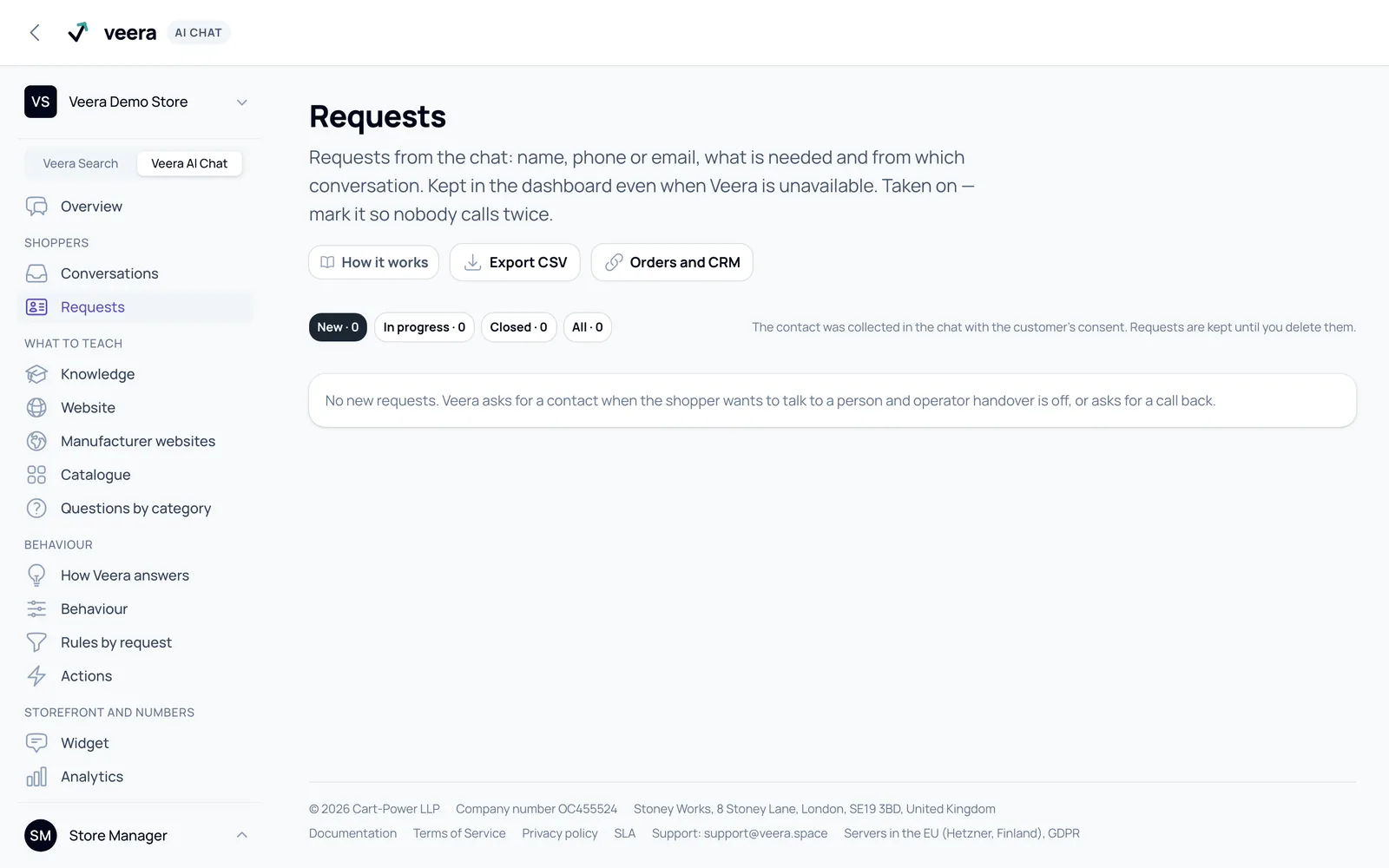
There are three statuses: new, in progress and closed. Tabs above the table: New, In progress, Closed, All. Each request has the buttons Conversation (opens the chat), Take on, Close and Return; next to the status you see who took it. When you take a request, mark it so that nobody calls the shopper twice. The owner also sees a Delete button. It deletes the request together with all of this shopper’s data: their conversations, history and team notes. Deletion can’t be undone.
An email arrives for every new request: to the owner and administrators, and to the addresses in the Where to send the contact field on the Behavior screen. You can turn the email off on Team or in your Profile.
The Export CSV button is available to the owner and administrators. Columns: when, name, phone, email, company, website, what they need, source, language, status, taken by, in CRM, conversation. Every export is recorded in the activity log.
The Orders and CRM button links requests to your store. The owner and administrators see it too:
- Storefront address and Shop module key: where to fetch the shopper’s orders from. You make up the key yourself and paste the same string into the connector settings on the storefront. In Veera Connector the field has the same name, “Shop module key”, on CS-Cart, WooCommerce and OpenCart (older versions called it “Assistant cabinet key” on CS-Cart and “Cabinet key” on WooCommerce); in the previous cp_connector module it is “Cabinet key”. Leave it empty and no orders are requested.
- CRM webhook address and CRM key: an incoming webhook of your CRM or of any other system that accepts JSON. The key is sent in the
X-Api-Keyheader. Once the address is set, each request gets an In CRM button that sends it manually, one at a time. Veera itself doesn’t push requests to the CRM.
Analytics
Storefront and numbers → Analytics covers 7, 30 or 90 days, compared with the previous period of the same length. Service checks and the sandbox are excluded from the numbers. The screen is open to the owner, administrators and managers.
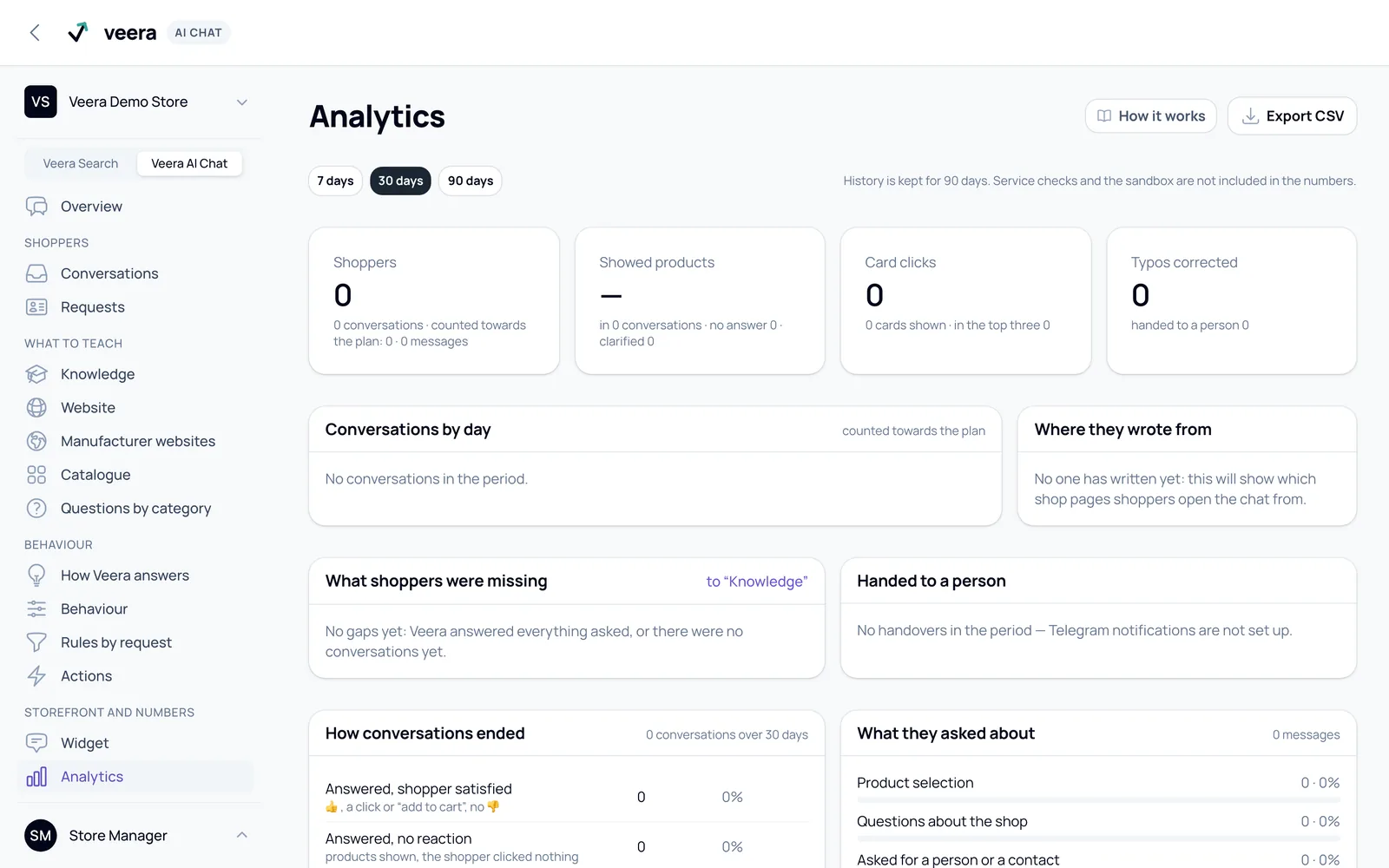
- Conversations by day: conversations and messages. The Shoppers tile also shows the number of conversations counted toward your plan.
- How conversations ended: “Answered, shopper satisfied”, “Answered, no reaction”, “Answered, shopper dissatisfied”, “Handed to a person”, “Found no answer”.
- What they asked about: product selection, questions about the shop, asked for a person or a contact, off topic, other.
- Scenario families: conversations and conversations with a contact for each family, if you have set families on the Behavior screen.
- Sales: how many times the window was shown on store pages, product cards shown, clicks on cards with CTR, add-to-cart from the chat; below, the products with their impressions, clicks and add-to-carts.
- What shoppers were missing: unanswered questions grouped by meaning. The to “Knowledge” link takes you to the gaps, where you can turn them into FAQ entries.
- Where they wrote from: home page, product card, category, cart, checkout, shop page, other pages, no page.
- Handed to a person: how many conversations and for what reasons.
- Operators: who took, answered, handed over and closed conversations, first response time (median and worst 5%), ratings, and the hours when operators write to shoppers.
Orders placed after a chat are not in analytics. Order data doesn’t reach the assistant, and there is no way to link an order to a conversation: the search window and the chat window use different visitor IDs. A zero in such a tile would read as “the chat doesn’t sell”, so we removed it. Sales from search are counted in search analytics.
Export CSV returns rows by day. Columns: day, conversations, messages, handed over, contacts, added to cart, 👍 ratings, 👎 ratings, window loads, model calls.
What is stored and for how long
Different data has different retention periods, and your plan doesn’t control all of them.
| Data | Retention | Set by |
|---|---|---|
| Requests on the Requests screen | Until you delete them or the contract ends | You: the owner deletes a request with the Delete button |
| Conversations with shoppers | 365 days after the last message of the conversation; the period can be shortened | Same on every plan; the owner shortens it on the Behavior screen |
| Shopper files | 90 days | The assistant, same on every plan |
| The internal processing log | 90 days, then de-identified and used to improve the Service (DPA clauses 13.5–13.6), or deleted if the store has asked us to stop this use | The assistant, same on every plan |
| Where the shopper wrote from: IP address, browser and device, languages, referring page and pages of the visit | 90 days after the conversation was last active, or earlier if the conversation is deleted; the conversation itself stays for its own period | The assistant, same on every plan |
| Analytics numbers | How many days of history are kept is shown above the tiles | The assistant |
These periods don’t depend on your plan. The owner can shorten the conversation period: on the Behavior screen, the Conversation retention button accepts 7 to 365 days and, before you save, shows how many conversations, messages and files will be deleted. Everything older than the period is removed within an hour, and after that the assistant keeps cleaning up on its own; requests stay. A request stays in the dashboard and isn’t lost even when Veera is unavailable. What counts toward your plan is covered in Plan, limits and team. What is sent to the language model and where data is stored is covered in Data and security.
Deleting a shopper’s data
If a shopper asks you to delete their data, open their conversation and press Delete shopper data (available to the account owner). All of their conversations, history, contacts and team notes are deleted and can’t be restored. In the assistant’s internal processing log, their messages and the assistant’s replies are erased and the rest is de-identified (DPA clause 10.2). The action is recorded in the activity log. For details, see Data and security.