Teaching the assistant
Two sources of knowledge
The assistant answers from two sources. The catalog holds products, prices, stock, categories and attributes; it comes from your store and updates by itself. Knowledge is everything else: how you work, shipping, returns, warranty, site pages and articles. Don’t put products and prices into Knowledge: they go stale, while the catalog is always fresher.
The What to teach menu group has five screens. Knowledge and Catalog are covered here; the others have their own sections: Website, Manufacturer websites and Questions by category. All five are open to the owner, administrators and managers.
Knowledge
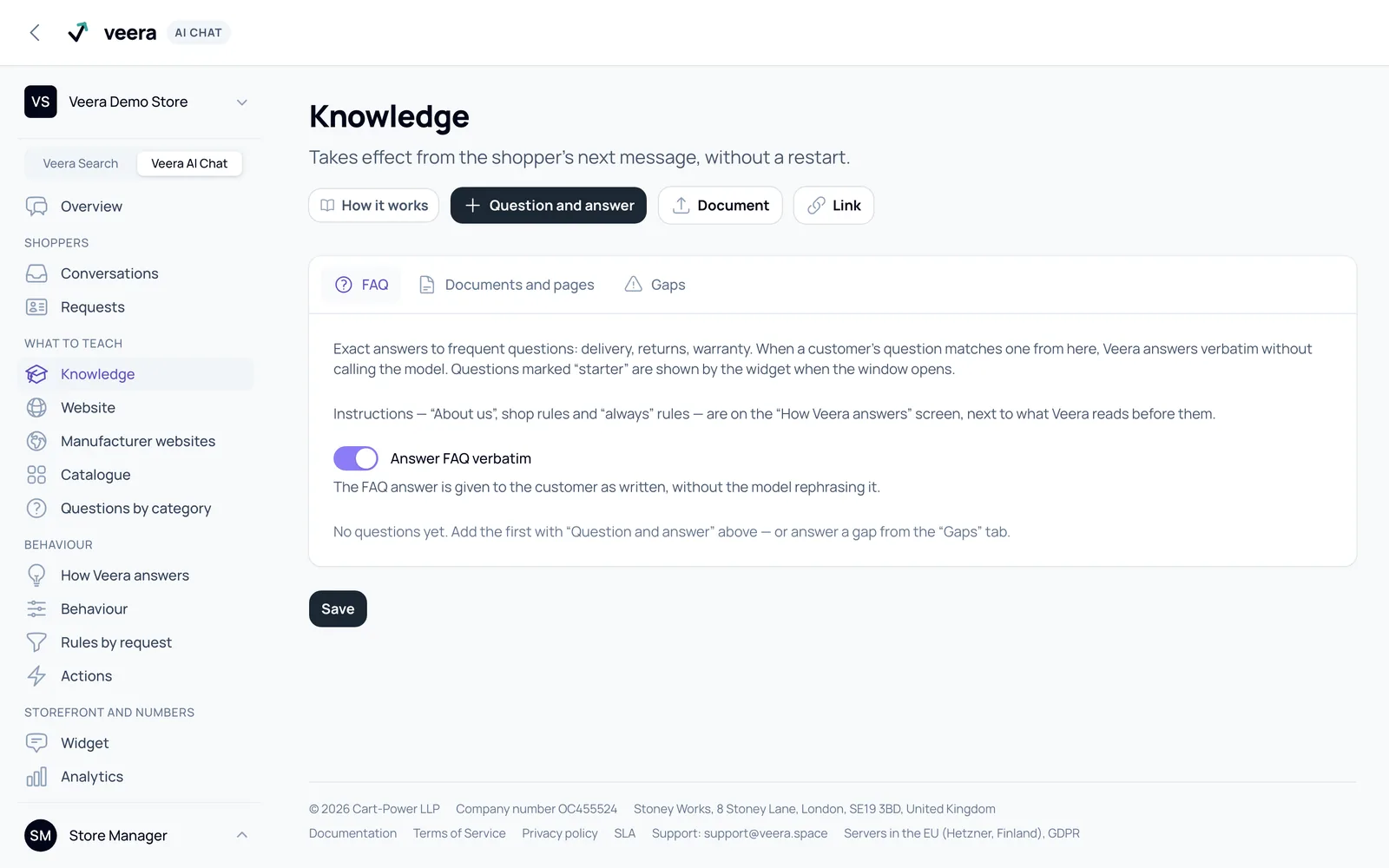
What to teach → Knowledge has three tabs: FAQ, Documents and pages and Gaps. At the top of the screen are three buttons: Question and answer, Document and Link.
Instructions
The Knowledge screen no longer has an Instructions tab. About us, shop rules and rules that always apply have moved to Behavior → How Veera answers, next to what Veera reads before them. What the owner edits there and what the Veera team edits is described in How Veera answers.
In short, here is what stays in your hands:
- About us: who you are and what you do, two or three lines, up to 600 characters.
- Shop rules: one per line, up to twenty. They outweigh manner but not catalog facts: no rule can override price or stock.
- Rules that always apply: up to 50 lines of short prohibitions, such as “Do not discuss competitors” or “Do not give medical advice”.
Don’t put products and prices into the instructions.
FAQ
Exact answers to common questions: shipping, returns, warranty, payment. When a shopper’s question matches a question here, the answer is given word for word, without the model rephrasing it; the Answer FAQ verbatim toggle controls this. Write links as full URLs. You can tick Show as a starter in the widget when the window opens on any question, and it will appear under the greeting. A question can be switched off with its toggle or deleted.
Documents and pages
There are three ways to add text:
- Your document: the Document button. PDF, DOCX, HTML, Markdown or plain text up to 10 MB, or pasted text.
- Page by link: the Link button. The page is read from the website; a link to
sitemap.xmlpicks up to 200 URLs. Re-read on a link refreshes its text. - Shop pages and blog: pages, blog posts and Q&A from your store arrive automatically and are split by headings. Here you can switch them off one by one.
The first line of the tab tells you where the store pages come from. For a store with Veera Connector, the connector delivers them through the Veera Search cloud. If the assistant’s catalog comes from a separate feed, it has no pages: connect your site on the Website screen and Veera will crawl it on its own.
Each document is split into chunks, and answers are searched for in those chunks. The How it is split button shows them, which helps when Veera answers with the wrong paragraph. Anything you don’t need can be switched off with a toggle (the document stays but isn’t read) or deleted. New content reaches the answers within a minute.
Gaps
What shoppers asked for that Veera couldn’t find or answered poorly, over the last 30 days, grouped by meaning. This is the fastest way to grow the knowledge base: Answer in FAQ opens a form with the shopper’s question, the answer is saved to the FAQ, and the gap leaves the list.
Catalog
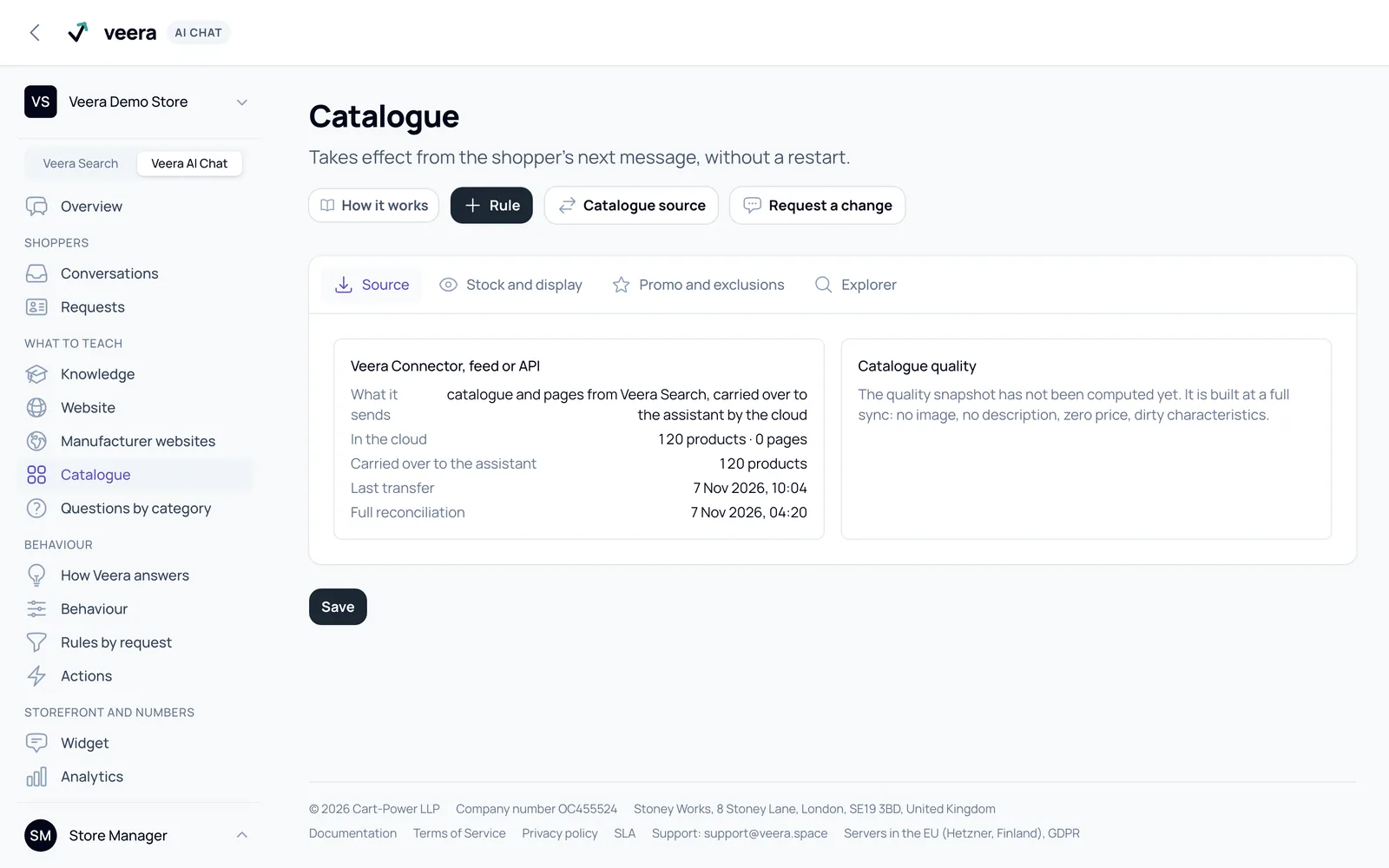
What to teach → Catalog controls how the assistant handles products. It has four tabs: Source, Stock and display, Promo and exclusions and Explorer.
Source
Where the catalog came from and what state it is in: how many products and pages are in the cloud, how many have been passed to the assistant, and when the last transfer happened. For a feed, you also see the URL, format, language, schedule and the result of the last import. Below that is the Catalog quality block. The owner or an administrator can change the source with the Catalog source button; the three options are described in AI Chat: setup.
Stock and display
| Setting | What it does |
|---|---|
| Show only what can be bought | Out-of-stock products are not recommended. Turn it off if you take pre-orders |
| In stock first | Out-of-stock items go to the bottom when they are shown at all |
| Mention availability | Whether Veera says in words that a product is in stock: “yes / no” or “do not say” |
| How much to say about stock | Options: “do not name”, “low” if below the threshold, or “exact”. Anyone can see the exact number, competitors included, so “only a few left” is usually enough |
| “Few left” threshold, pcs | The stock level below which stock counts as “low” |
| Cards per answer | Three cards read better than five on a phone |
| Order when the shopper did not ask for one | There is one order, “by popularity”. When a shopper asks for “cheaper”, Veera sorts by price on its own |
| Reason under the card | One line on why this particular product |
| Reason length, characters | The length limit for that line |
The Fine-tuning of selection block shows six settings: Category in selection, Correct typos, Result check by the model, Boost by clicks, Popularity by purchases and A named property is a catalog condition. You see their actual values but can’t edit them: our engineers change them based on measurements. The Request a change button at the top of the page sends a request together with a snapshot of the current settings.
Promo and exclusions
Three lists, up to 200 rules each:
- Promote: the product shows up in answers more often when it fits: with equal relevance, it ranks higher. Promotion never lets it jump over a better-matching product.
- Do not recommend: Veera doesn’t suggest the product on its own but answers a direct question about it.
- Do not mention: for the assistant, the product doesn’t exist.
A rule can target a product, a category including its subcategories, a brand, an attribute value or a vendor. Add a rule with the Rule button at the top of the screen or from the explorer, with the three buttons next to a product. A rule applies from the shopper’s next message.
Explorer
Products, pages and articles as they sit in the assistant’s index. Search by name, SKU or category, and see impressions, clicks and add-to-carts over 30 days. The As Veera sees it link opens the product card exactly as the assistant reads it. This is the first place to look when Veera “doesn’t see” a product: if it isn’t in the explorer, the issue is the catalog sync.
How to check
Storefront and numbers → Sandbox: ask as a shopper would. The conversation doesn’t go into Conversations or the counters, and a reply takes 3–8 seconds. The “The customer is on page” line sets where the shopper is writing from: “home page or another page”, “product card” with a product ID, or “category” with a category ID. On the right you see why Veera answered the way it did: what it understood from the question, which category it chose, and which products, knowledge and rules it saw. Come back here after every change to knowledge or the catalog.